
Skip to content
  • About
  • Contact
  • Devices
    • Cipherlab RK26 Series
    • Cipherlab RK38 Series
    • Cipherlab RK95 Series
    • iData KS3 Series
    • iData T2 Series
    • iData T3 Pro Series
    • Rizzen Novatab R10
    • Rizzen Novatab S1
    • Rizzen Novatab X1
    • Samsung Galaxy A57
    • Samsung Galaxy Tab A9+
    • Samsung Galaxy Tab S10+
  • Home
  • Knowledge Base
  • Privacy Policy
Get Started
Autonoedge White Logo
  • Devices
  • About
  • Contact
Get Started
Autonoedge White Logo

Autonoedge Overview

7
  • Understanding Fleet
  • Fleet Scheduling
  • Managing Applications via File System
  • Device Action Commands
  • User & Group Management
  • Filters
  • Hybrid Cloud

Android Edge

15
  • Application Management
  • File Sync
  • Wallpaper Settings
  • Password Management
  • Profile Settings
  • Setting Up Custom Data
  • Security Management
  • Kiosk Mode
  • Network Management
  • Enrolling a GMS Device
  • Understanding Geofence
  • Device Overview
  • File Sync with Custom Intent
  • Certificate Management
  • Feature Control

Troubleshooting

5
  • Application Deployment Troubleshooting
  • Device Enrollment Troubleshooting
  • Kiosk Mode Troubleshooting
  • Profile Settings Troubleshooting
  • Remote Control Troubleshooting
View Categories
  • Knowledge Base
  • Android Edge
  • Security Management

Security Management

1 min read

Security Settings in Springdel allow administrators to define automated actions for lost or unmanaged devices, helping protect enterprise data and reduce security risks. By configuring these settings, you can ensure that sensitive information remains secure even when devices are offline, lost, or no longer under management.


Key Benefits #

  • Device Protection – Automatically wipe lost or unmanaged devices to prevent unauthorized access.
  • Data Security – Protect sensitive data from being accessed on inactive or unmonitored devices.
  • Automation Security – Configure offline wipe triggers based on a defined period of device inactivity.


Step 1 – Access the Security Menu #
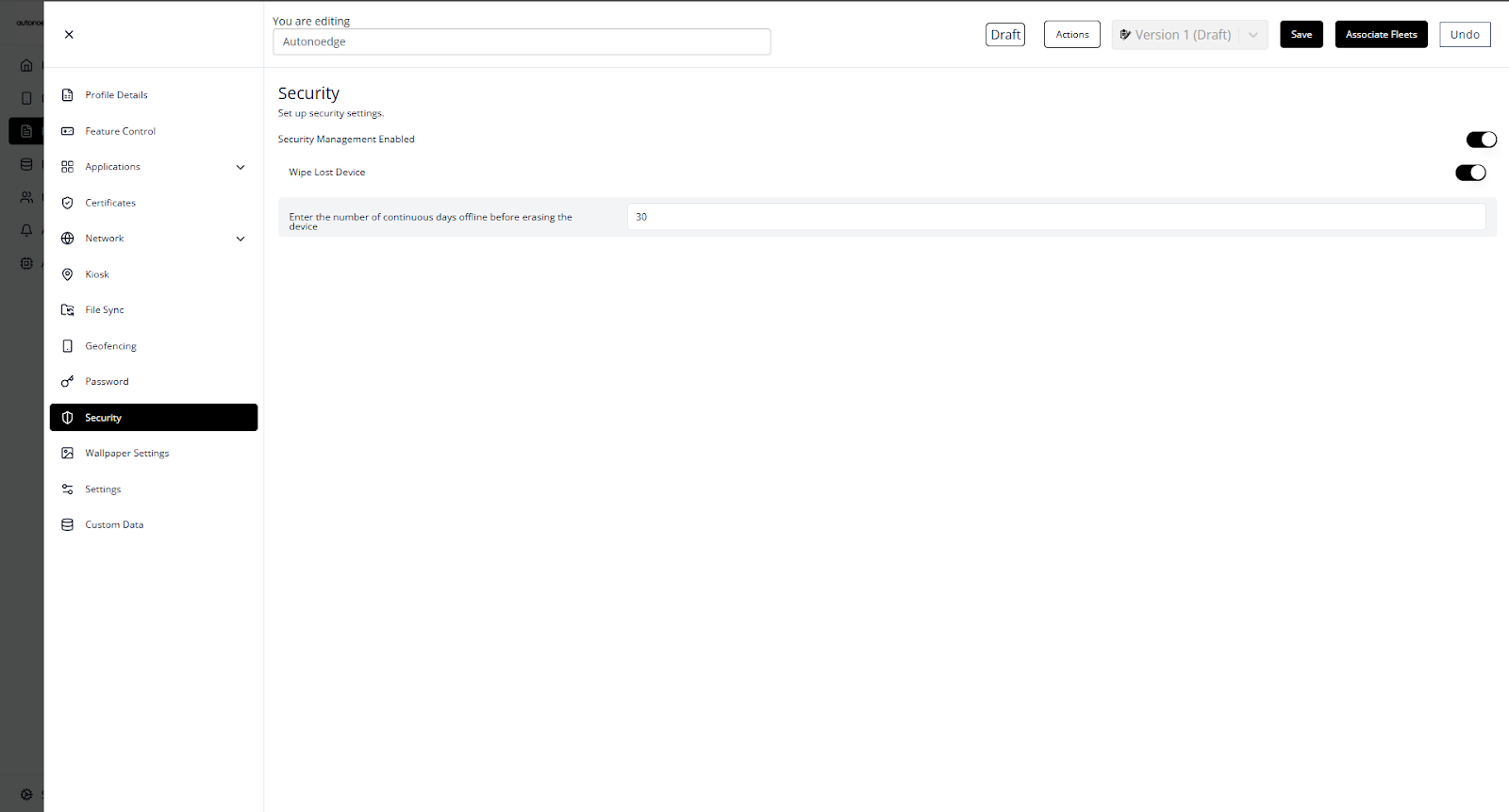
  1. Log in to your Autonoedge console.
  2. Navigate to the Profiles section from the left-hand menu.
  3. Click the “Create New Profile +” button and select Android Edge as the device type.
  4. In the profile sidebar, click Security and toggle the Security Management Enabled switch to On.

Step 2 – Configure Security Features #

  1. Toggle Wipe Lost Device to ON.
  2. Enter the number of continuous offline days in the input field.
    • Example: Enter 30 to automatically wipe any device that remains offline for 30 days.
  3. Click Save to apply your changes.

Step 3 – Associate the Profile #

  1. Once your profile is configured with the desired security features, associate the profile with the target fleet.
  2. Once associated, the security features will be deployed on all devices in that fleet according to the security settings.


Best Practices & Tips #

  • Set a Safe Threshold: Use a conservative period (e.g., 30 days) to avoid accidental wipes during repairs or extended travel.
  • Communicate Policies to Users: Inform device users about the wipe policy to prevent unexpected resets.
  • Monitor Device Status Regularly: Keep track of devices approaching the offline limit to take preventive action.
  • Combine with Other Features: Use in conjunction with Geofencing or Location History to verify device status before initiating a wipe.

Share on:

  • Facebook
  • X
  • LinkedIn
Setting Up Custom DataKiosk Mode
Table of Contents
  • Key Benefits
  • Step 1 - Access the Security Menu
  • Step 2 - Configure Security Features
  • Step 3 - Associate the Profile
  • Best Practices & Tips
Autonoedge White Logo
We simplifies enterprise device deployment with Android Enterprise–ready solutions, from trusted hardware to zero-touch enrollment and centralized management.

Quick Access

Home
Devices
About
Contact

Contact Us

sales@autonoedge.com
support@autonoedge.com

Office Address

2/F – 3/F, Dorset Hse Taikoo Place, 979 King’s Road, Quarry Bay, Hong kong

Copyright © 2026 Autonoedge | All rights reserved.

Privacy Policy

Cookies Settings