

Managing Applications via File System
1 min read
The File System section in Autonoedge allows administrators to manage Android application packages (APKs) uploaded directly to the platform. This provides IT teams with greater control over how and when applications are installed on managed devices.
Key Benefits #
- Centralized Control – Manage enterprise applications from a single location.
- Flexible Deployment – Install and retain apps outside standard profile settings.
- Policy Bypass Option – Override update policies in special scenarios.
- Prevent Accidental Removal – Keep critical apps installed during fleet or profile changes.
Access Application Options #
When you select a previously uploaded application in Autonoedge, three main sections are available:
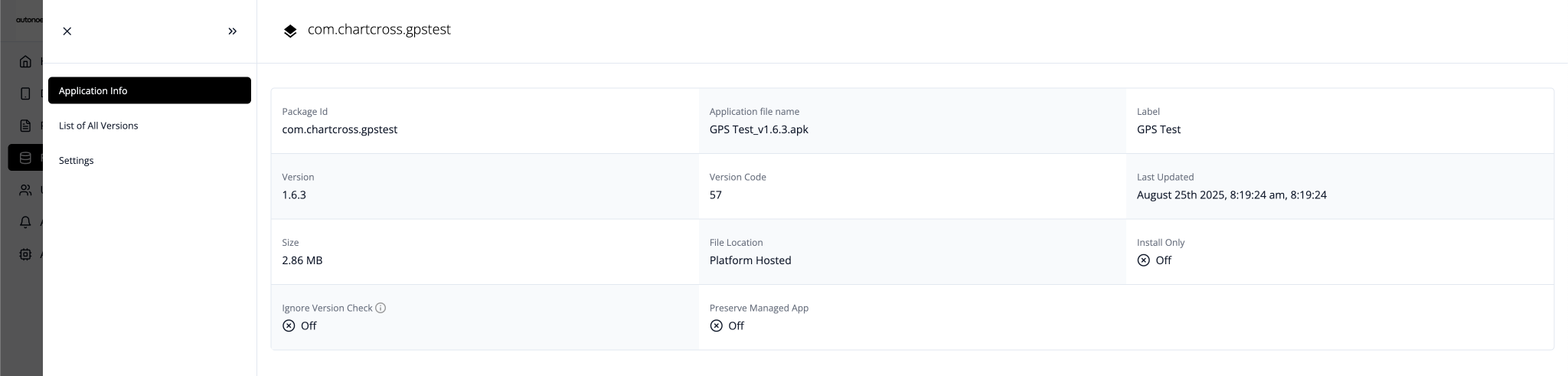
- Application Info (informative only).
- List of All Versions – Manage and interact with all uploaded builds of the selected app.
- Settings – Control how the app behaves on devices.
Manage App Versions #
Here you can view, download, or delete uploaded versions of the selected app:

- View Build Details:
- Shows Version, Version Code, Size, Uploaded By, Uploaded On, Last Updated.
- Displays Flags: Install Only, Ignore Version Check.
- Actions menu (three dots icon).
- To Download an Uploaded App:
- Navigate to List of All Versions
- Click the three dots next to the version you want to download
- Select Download
- To Delete an Uploaded App Version:
- Check the box next to the version you want to delete
- Click the trash bin icon at the top
- Confirm the deletion
Important: Deleting all versions will remove the app from the platform entirely.
Configure App Settings #
This section defines how Autonoedge handles the app on enrolled devices:

- Install Only – Installs the app once without enforcing updates or preventing uninstallation.
- Preserve Managed Application – Keeps the app installed even if:
- The device moves to another fleet without the app profile
- The profile is replaced by one that does not include the app
- Ignore Version Check – Disables version validation during install or update.
Important: Ignoring version check can lead to inconsistent app behavior if different versions are deployed unintentionally.
Best Practices & Tips #
- Use Install Only for Testing: Apply the Install Only setting for non-critical or trial applications to avoid unnecessary updates.
- Enable Preserve Managed Application for Essential Tools: Keep vital apps like security or remote support installed, even during fleet or profile changes.
- Avoid Ignore Version Check Unless Necessary: Only disable version control if you fully manage all app deployments and versioning internally.
- Maintain Consistent APK Naming: Use clear and consistent file names to easily identify app versions and avoid confusion in the file system.


