

Fleet Scheduling
2 min read
This guide outlines how to configure scheduled actions for device fleets in Autonoedge. By automating routine maintenance tasks, such as rebooting devices or clearing application cache — administrators can ensure optimal device performance with minimal manual intervention.
Key Benefits #
- Automate repetitive tasks – Save time by scheduling routine maintenance.
- Minimize disruptions – Run actions during off-hours.
- Ensure consistency – Apply updates uniformly across fleets.
- Handle offline devices – Configure retries for missed actions.
Step 1 – Navigate to Fleet Schedules #
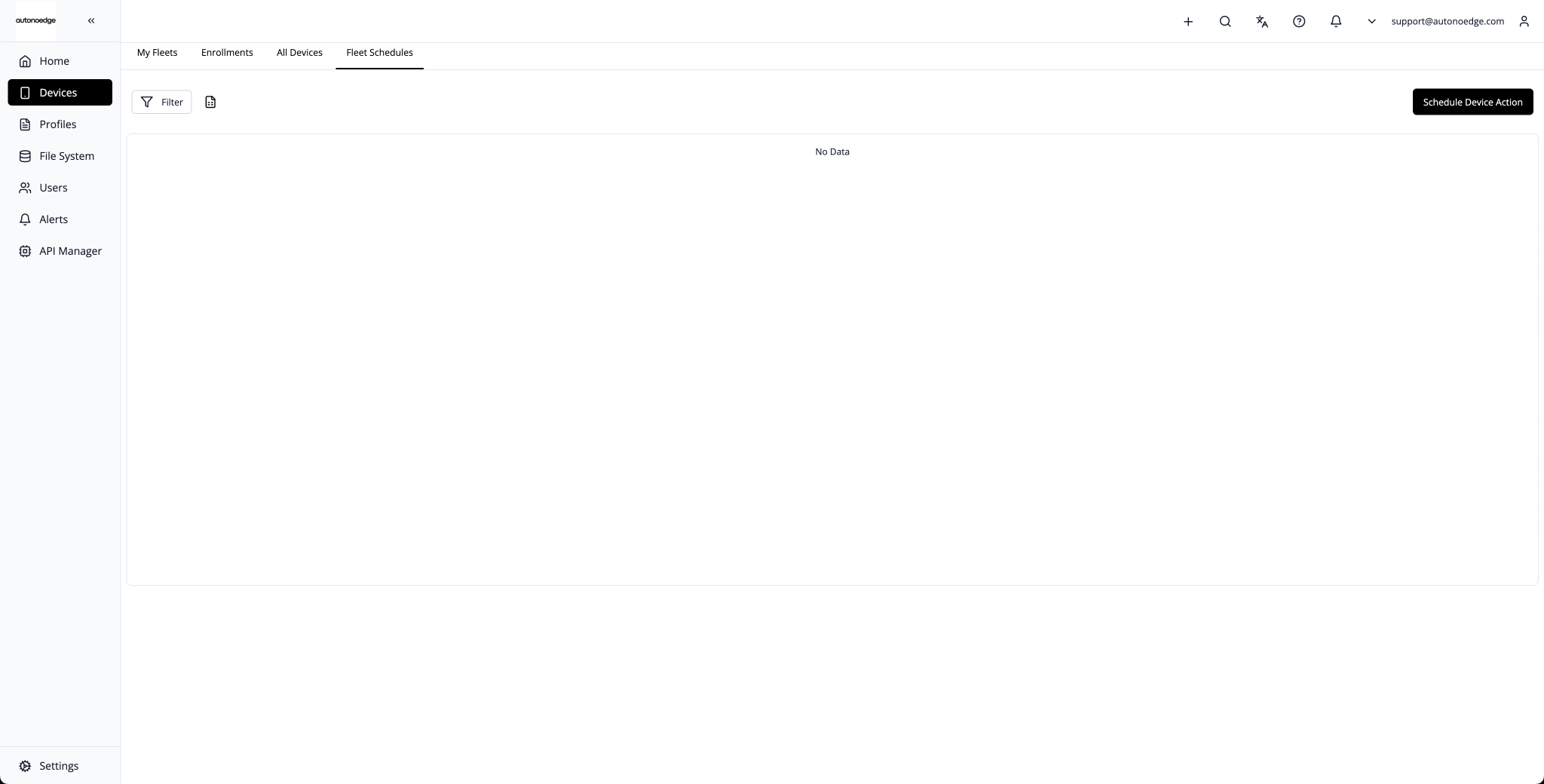
- Log in to the Autonoedge dashboard.
- Navigate to Devices > Fleet Schedules.
- Click Schedule Device Action on the top-right corner of the screen.
Step 2 – Select a Fleet #
In the Choose Fleet section, select one of the following:
- A specific fleet (e.g., Test Fleet)
- All fleets to apply the scheduled action across all registered devices
Step 3 – Choose an Action #
Select one of the following available actions:
- Force Device Check-in
- Remote Reboot Device(s)
- Remote Lock Device(s)
- Clear Application Data & Cache
- Send Message
Note: If choosing Clear Application Data & Cache, enter the Application Package Name (e.g., com.autonoedge.minisettings).
Step 4 – Configure Schedule Settings #
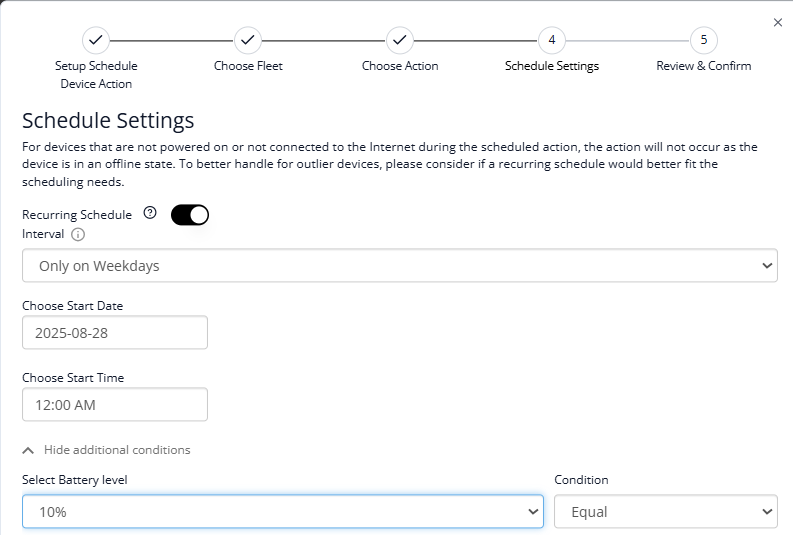
Recurring Schedule #
- Toggle Yes/No for recurring
- If recurring, set the desired interval (e.g., Only on Weekdays)
Timing #
- Start Date (e.g., 2025-08-28)
- Start Time (e.g., 12:00 AM)
Additional Conditions (Optional) #
- Battery level condition (e.g., Equal to 10%)
Step 5 – Review & Confirm #
- Verify the following details:
- Selected fleet
- Chosen action
- Scheduled timing
- Any applied conditions
- Click Confirm to activate the scheduled action.
How to Verify Scheduled Actions #
- Go to the Fleet Dashboard to view scheduled tasks.
- Review device logs after the scheduled execution time.
- It’s recommended to test on a smaller fleet before rolling out to all devices.
Best Practices & Tips #
- Start with a test fleet: Always validate new scheduled actions on a limited group of devices before deploying fleet-wide.
- Schedule during low-usage hours: Configure actions like reboot or cache clearing during off-peak times (e.g., midnight) to avoid disrupting end users.
- Use conditions to prevent risk: Apply battery-level or connectivity checks to ensure actions only run when devices are in a safe state.
- Name schedules clearly: Use descriptive names for each scheduled task (e.g., Weekly Reboot – Logistics Fleet) for easier management and auditing.
- Avoid overlapping schedules Ensure that scheduled actions do not conflict with one another or with other automated workflows.


