

Device Action Commands
4 min read
This guide outlines the available Action Commands for each supported platform — Android Edge, Android Enterprise, iOS, and Windows — detailing their functions and providing step-by-step instructions. It is designed to help IT administrators quickly identify, locate, and execute the appropriate command for tasks such as moving devices between fleets, forcing check-ins, rebooting, locking, wiping, and more.
Key Benefits #
- Centralized Control – Manage multiple devices simultaneously from a single dashboard.
- Enhanced Security – Enforce policies remotely (e.g., wipe or unenroll lost devices).
- Streamlined Management – Simplify fleet organization and device lifecycle processes.
- Flexible Updates – Automate agent updates or perform manual interventions as needed.
- Bulk Operations – Execute mass actions like renaming via CSV files.
Step 1 – Trigger Device Action Commands #
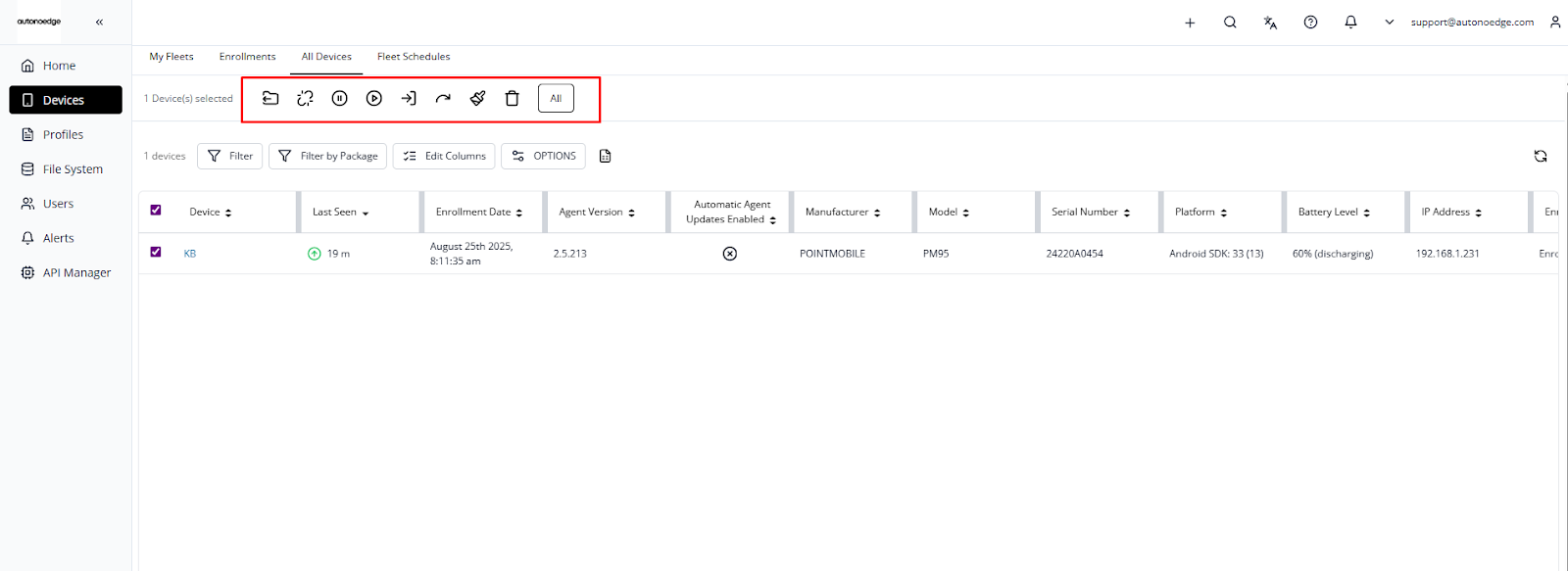
- To use common device actions, first select the checkbox next to one or more devices.
- Once selected, the top toolbar will display the available action icons you can click to execute the desired command.
Step 2 – Device Action Commands #
Android Edge #
| Icon | Action | Description |
 | Export Device Location Logs | Download device location history for auditing or tracking. |
 | Move Device | Reassign device(s) to another fleet. |
 | Temporarily Exit Kiosk Mode | Exit kiosk mode for 10 minutes. |
 | Identify Device | Trigger sound/vibration to locate a device. |
 | Track Devices | Increase GPS update frequency for 10 minutes. |
 | Force Device Check-in | Instantly sync the device with Autonoedge. |
 | Download CSV for Bulk Renaming | Generate a CSV template for mass renaming. |
 | Clear Application Data & Cache | Remove data and cache for specific apps. |
 | Send Message | Display a message on the device screen. |
 | Add/Update Custom Note | Add internal notes to the device record. |
 | Unenroll Devices | Remove devices from Autonoedge management. |
 | Remove Devices | Delete device records without wiping. |
 | Reset Device Password | Clear the device’s password. |
 | Pause Agent Updates | Temporarily stop Autonoedge agent updates. |
 | Resume Agent Updates | Resume automatic Autonoedge agent updates. |
 | Remote Reboot Device(s) | Restart devices remotely. |
 | Remote Wipe Device(s) | Factory reset devices remotely. |
 | Remote Lock Device(s) | Lock devices remotely to restrict access. |
 | Launch App Remotely | Start an app remotely by package ID. |
 | Set Static IP | Assign a static IP configuration to a device. |
 | Lock Device Configuration | Prevent profile/configuration changes. |
 | Unlock Device Configuration | Allow profile/configuration changes. |
Android Enterprise #
| Icon | Action | Description |
| Move Device | Reassign device to a different fleet. |
| Force Device Check-in | Instantly sync the device with Autonoedge. |
| Download CSV for Bulk Renaming | Generate a CSV template for mass renaming. |
| Add/Update Custom Note | Attach internal notes to the device. |
| Unenroll Device(s) | Remove devices from Autonoedge management. |
| Remove Device(s) | Delete device record without wiping. |
| Remote Reboot Device(s) | Restart devices remotely. |
| Remote Wipe Device(s) | Factory reset devices remotely. |
| Reset Device Password | Reset the device’s password remotely. |
| Remote Lock Device(s) | Lock the device to prevent user access. |
iOS #
| Icon | Action | Description |
| Export Device Location Logs | Download device location history for auditing or tracking. |
| Move Device | Reassign devices to a different fleet. |
 | Force Device Check-in | Instantly sync the device with Autonoedge. |
| Download CSV for Bulk Renaming | Generate a CSV template for mass renaming. |
| Unenroll Device(s) | Remove devices from Autonoedge management. |
| Remove Device(s) | Delete device record without wiping. |
 | Disable Passcode Lock | Temporarily remove passcode requirement. |
 | Shut Down Device | Power off devices remotely. |
| Set Device Name | Assign a custom name to the device. |
 | Set Wallpaper | Apply image to Home Screen, Lock Screen, or both. |
| Track Device(s) | Increase GPS update frequency for 10 minutes. |
| Add/Update Custom Note | Attach internal notes to the device record. |
 | Lost Mode | Lock, locate, or send message to a lost device. |
| Remote Reboot Device(s) | Restart devices remotely. |
| Remote Wipe Device(s) | Factory reset devices remotely. |
| Remote Lock Device(s) | Lock devices remotely to restrict access. |
 / /  | Update iOS / Scan for OS Update | Scan for updates and apply based on method. |
Windows #
| Icon | Action | Description |
| Move Device | Reassign device to a different fleet. |
| Force Device Check-in | Instantly sync the device with Autonoedge. |
| Send Message | Display a message on the device screen. |
| Unenroll Device(s) | Remove devices from Autonoedge management. |
| Remove Device(s) | Delete device record without wiping. |
| Remote Reboot Device(s) | Restart devices remotely. |
| Remote Lock Device(s) | Lock the device to prevent user access. |
Best Practices & Tips #
- Double-Check Selections: Always verify devices before applying bulk actions.
- Use Trusted Editors for CSVs: Edit only in Excel or Google Sheets to prevent file corruption.
- Backup Before Critical Actions: For actions like remote wipe, ensure data backups are in place.
- Tag Devices with Custom Notes: Use notes to track purpose, location, or assigned user.
- Test on a Single Device First: Trial new commands before rolling out to the fleet.
- Schedule Bulk Operations Off-Peak: Minimize user disruption during updates or reboots.
- Use Force Check-in Strategically: Avoid unnecessary network load.
- Resume Paused Updates Promptly: Keep agents updated for security compliance.
- Lock or Enable Lost Mode Quickly: Secure data on missing devices immediately.
- Follow Platform-Specific Rules: Prevent errors by applying only supported commands.


