

Kiosk Mode
3 min read
Kiosk Mode in Autonoedge allows administrators to lock devices into a secure, controlled environment, limiting access to only approved applications and functions. This mode is ideal for enterprise, retail, education, and field service scenarios where devices must remain dedicated to specific tasks, ensuring security, performance, and ease of use for end users.
Key Benefits #
- Device Lockdown – Restrict access to only business-critical apps and functions.
- Enhanced Security – Protect against tampering with password-protected kiosk exit options.
- Performance Control – Allow essential background services while blocking unnecessary processes.
- Custom Branding – Customize device appearance with wallpapers and metadata display.
- Simplified User Experience – Offer single- or multi-app layouts for a clean, task-focused interface.
Step 1 – Access the Kiosk Menu #
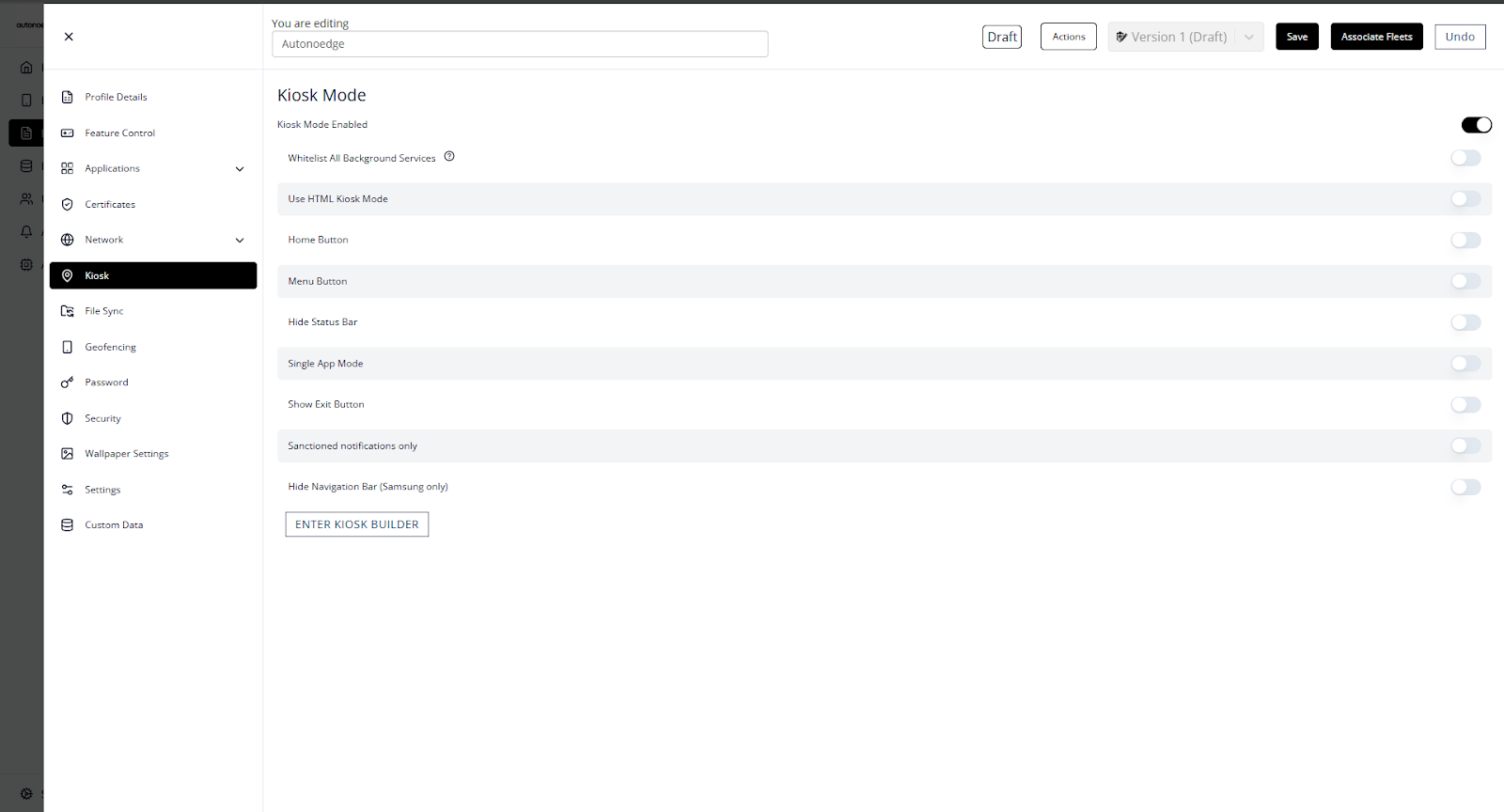
- Log in to your Autonoedge console.
- Navigate to the Profiles section from the left-hand menu.
- Click the “Create New Profile +” button and select Android Edge as the device type.
- In the profile sidebar, click Kiosk and toggle the Kiosk Mode Enabled switch to On.
Step 2 – Configure Kiosk Settings #
| Setting | Description | Example |
| Whitelist Background Services | Allows selected background services to run while in kiosk mode. Useful for convenience; by default, services outside kiosk mode are blocked. | Whitelist barcode scanner service for POS app. |
| Use HTML Kiosk Mode | Enables a web-based kiosk layout using HTML files uploaded to the Autonoedge File System. | See HTML Kiosk Mode in Step 3. |
| Home Button | Configure behavior of the home button in kiosk mode. | Enabled to show the home button in kiosk mode. |
| Menu Button | Configure behavior of the menu button in kiosk mode. | Enabled to show the menu button in kiosk mode. |
| Hide Status Bar | Removes Android’s status bar for a cleaner UI. | Enabled for retail devices. |
| Single App Mode | Lock devices to a single app. The app must also be added to the Autolaunch App list in the Kiosk Builder. | Locked to the POS app. |
| Show Exit Button | Adds a password-protected exit button instead of the four-corner gesture. | Enabled for quick admin access. |
| Sanctioned Notifications Only | Allows notifications only from whitelisted apps. | Allow from messaging apps only. |
| Hide Navigation Bar (Samsung only) | Hides soft navigation buttons on Samsung devices. | Enabled for kiosk tablets. |
| Enter Kiosk Builder | Opens kiosk builder mode for further customization. | — |
Step 3 – Enter Kiosk Builder #
System Kiosk Mode #
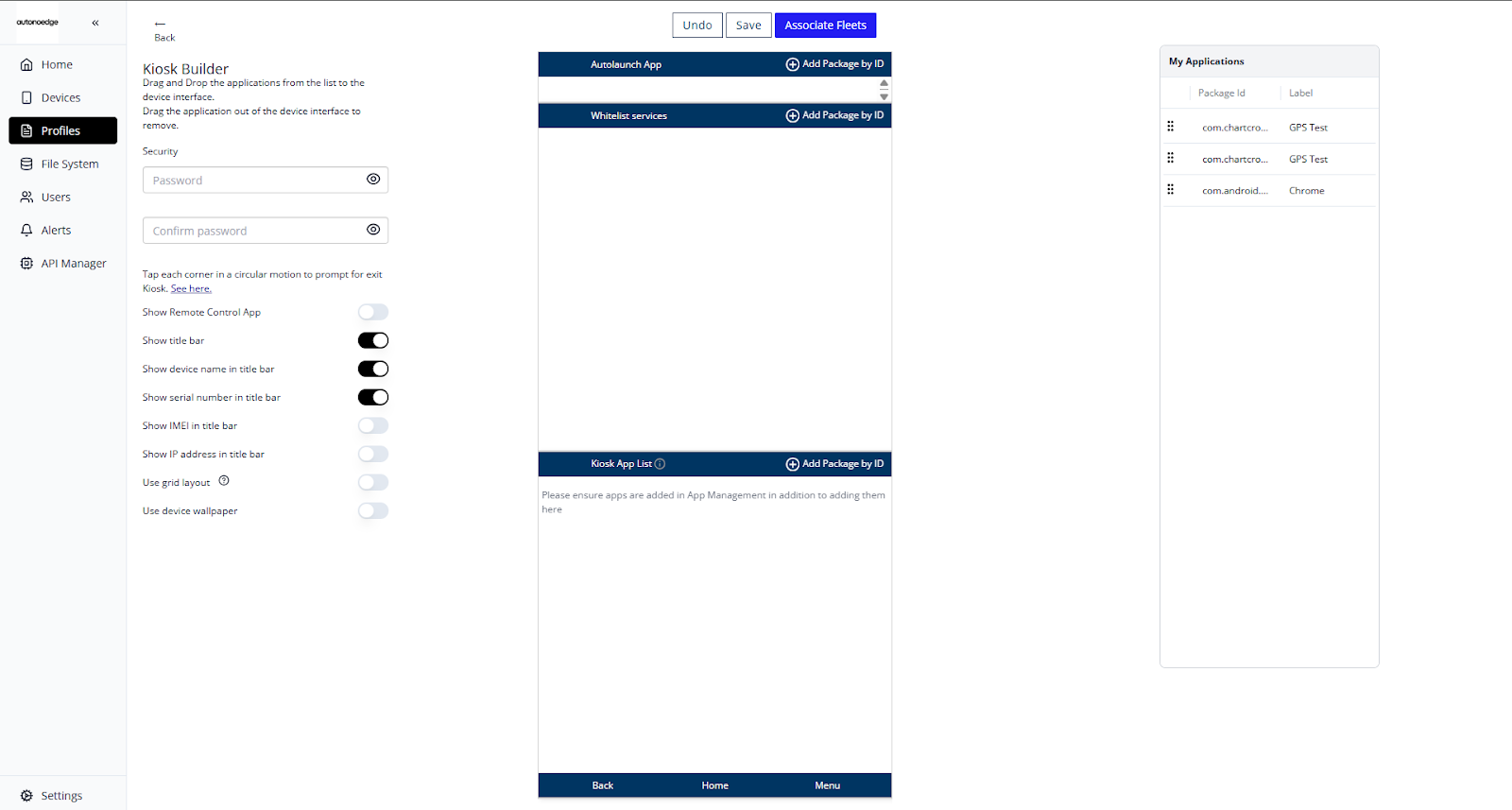
Password Settings: #
| Setting | Description | Example |
| Security Password | Sets the exit password for kiosk mode. | SecurePass123 |
Note: To see how to exit, click the “See Here” blue link, which will show you how to exit kiosk mode.
Kiosk UI Settings: #
| Setting | Description | Example |
| Show Remote Control App | Displays the Autonoedge Remote Control app in kiosk mode (not required for remote control to function). | Disabled for cleaner UI. |
| Show Title Bar | Enables top bar showing metadata (max 3 items). | Show Serial Number, IMEI, IP. |
| Use Grid Layout | Displays apps in a grid instead of a list. | Enabled for tablet kiosks. |
| Use Device Wallpaper | Uses device’s native wallpaper instead of default grey. | Custom branding wallpaper. |
Note: A maximum of 3 items can be displayed in the title bar.
App Management Settings: #
| Setting | Description | Example |
| Autolaunch App | Automatically launches a specific app every X seconds if not running. Required for Single App Mode. | Autolaunch POS app every 5s. |
| Whitelist Services | Keeps essential background services running. Add by package ID if not listed. | com.android.chrome |
| Kiosk App List | Apps visible in kiosk mode. Add by drag-and-drop or package ID. | com.android.chrome – Google Chrome |
Note: The Autolaunch App setting is unavailable when Single App Mode is active. However, you must still add the desired application to the Autolaunch App list to enable Single App Mode with that app.
HTML Kiosk Mode #
If “Use HTML Kiosk Mode” is enabled in Step 2, a HTML Kiosk builder settings will appear:
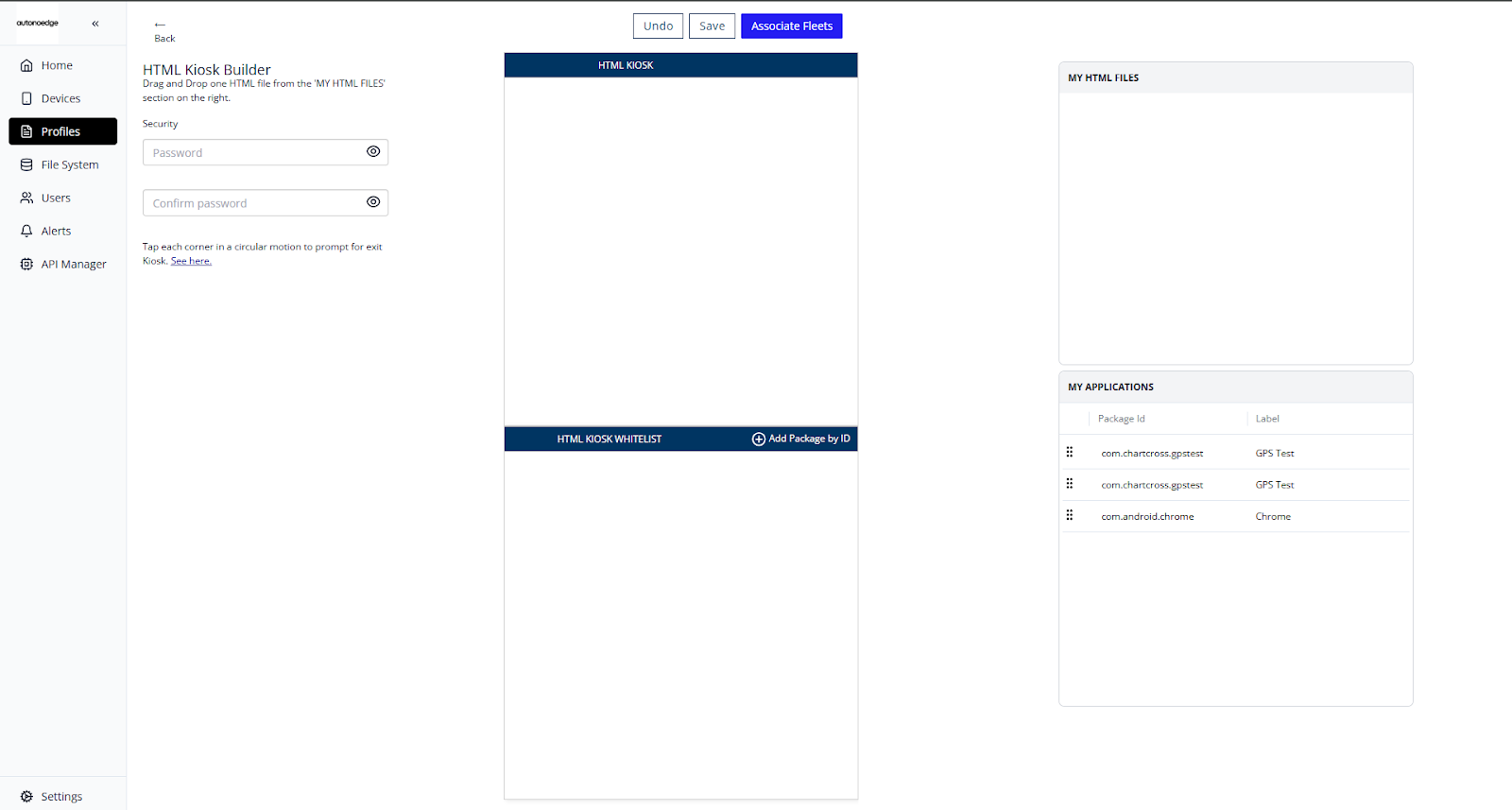
Password Settings: #
| Setting | Description | Example |
| Security Password | Sets the exit password for kiosk mode. | SecurePass123 |
Note: To see how to exit, click the “See Here” blue link, which will show you how to exit kiosk mode.
App Management Settings: #
| Setting | Description | Example |
| HTML Kiosk | Drag & drop HTML file from “My HTML File” (uploaded in file system) into HTML Kiosk box. | Example_HTML_file.html |
| HTML Kiosk Whitelist | Keeps dependent background services callable by HTML file. Add by package ID if not listed. | com.android.phone |
Step 4 – Associate the Profile #
- Once your profile is configured with the desired kiosk mode, associate the profile with the target fleet.
- Once associated, the kiosk mode will be deployed on all devices in that fleet according to the profile settings.
Best Practices & Tips #
- Define the Right App Access: Only include apps essential for business operations in the kiosk app list to reduce distractions and security risks.
- Use Single App Mode for High-Security Scenarios: Ideal for dedicated-use devices where users must remain in one application.
- Secure the Exit Process: Always set a strong kiosk exit password and ensure only authorized personnel know it.
- Leverage Background Whitelisting Wisely: Only whitelist necessary background services to balance security and functionality.
- Customize the UI for Clarity: Use grid or list layouts based on user familiarity, and enable only essential metadata in the title bar.
- Test Before Deployment: Configure kiosk mode on a test device first to ensure all apps, services, and UI settings work as expected.
- Optimize for Performance: Avoid including heavy or unnecessary apps to keep devices responsive.


