

Understanding Fleet
3 min read
In Autonoedge, Fleets are groups of devices in Autonoedge that help you manage multiple devices at once. You can apply settings, policies, alerts, and remote actions to an entire fleet, making it easier to organize and control your devices at scale.
Key Benefits #
- Efficient Device Grouping – Organize devices based on purpose or ownership for easier management.
- Targeted Policy Enforcement – Apply security and configuration policies to specific groups of devices.
- Improved Visibility – Use filtered views to quickly locate and monitor relevant devices.
- Scoped Permissions – Assign user groups permissions to manage only their designated fleets.
Create, Manage, Delete Fleet #
Create New Fleet #
- Log in to your Autonoedge console.
- Navigate to the Devices section from the left-hand menu.
- Click the “+” icon next to All Fleets.
- In the pop-up dialog:
- Enter a Fleet Name (e.g., Marketing Android, IT Department).
- Click Create Fleet.
- The new fleet will now appear in the left panel under All Fleets.
- Alternatively, you can also create a subfolder/sub-fleet under an existing fleet folder by clicking the folder where you want to add a subcategory, then clicking the “+” icon next to it.
- This allows you to organize devices hierarchically within nested fleet structures.
Manage Fleet #
Renaming Fleet #
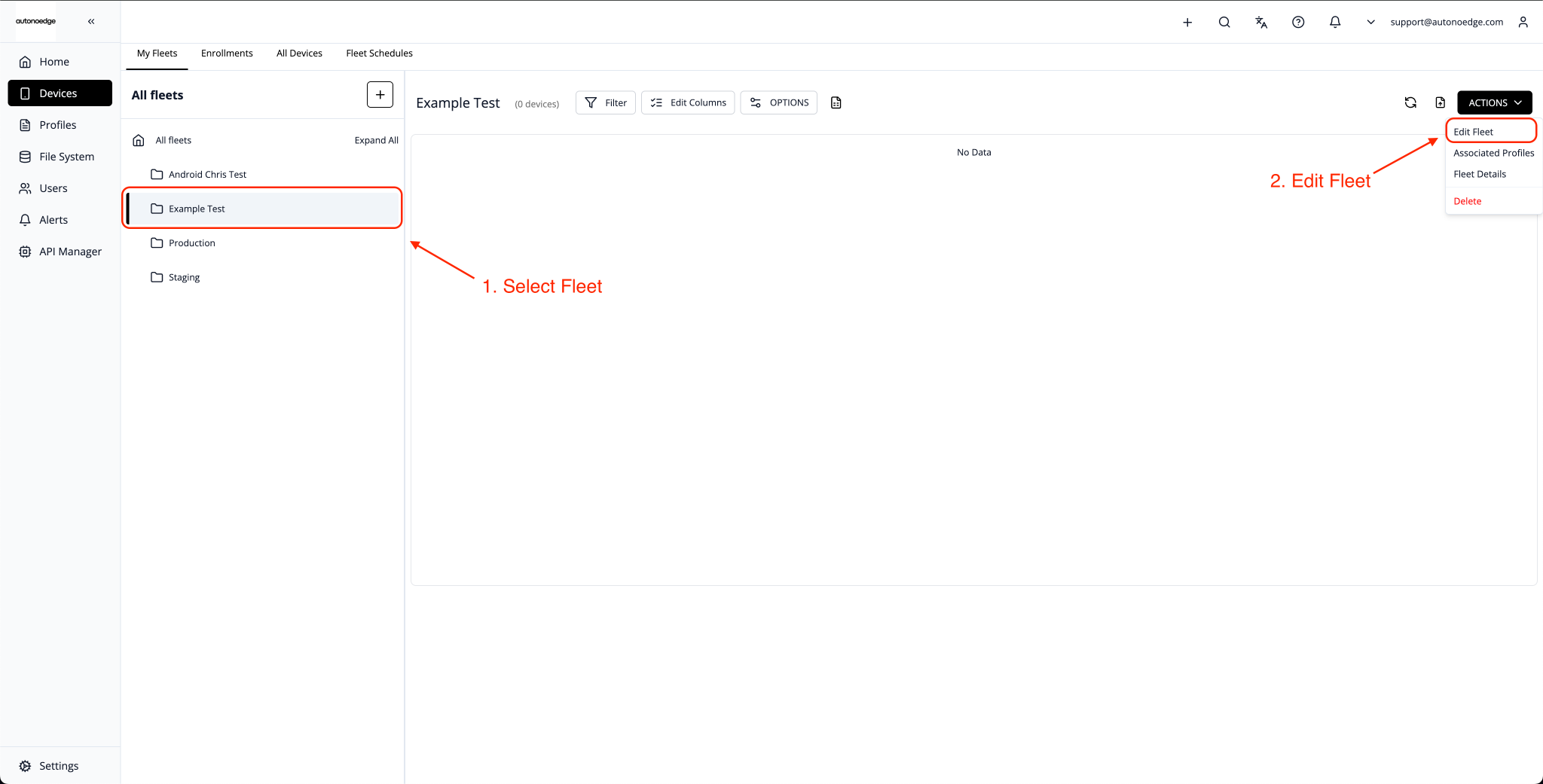
- Go to the Devices tab on the left sidebar.
- In the All Fleets panel, click the fleet you want to rename (e.g., Example Test).
- Click the Actions dropdown (top right corner of the fleet view).
- Select Edit Fleet.
- Enter the new fleet name and click save.
Associating / Disassociating Profiles #
- Go to the Devices tab on the left sidebar.
- In the All Fleets panel, click the fleet you want to manage (e.g., Example Test).
- Click the Actions dropdown in the top-right corner of the fleet view.
- Select Associated Profiles.
- To associate a profile:
- Tick the checkbox next to the profile you want to associate (e.g., Out of New York).
- Click Associate to confirm the change.
- To disassociate a profile:

- Once a profile is associated with a fleet, it will be displayed below the fleet name (e.g., Associated Profiles: Out of New York).
- If no profiles are associated, this section will appear empty.

- Alternatively, you may also click Actions > Fleet Details to view which profiles are currently associated with the selected fleet.
Arranging / Moving Fleets #
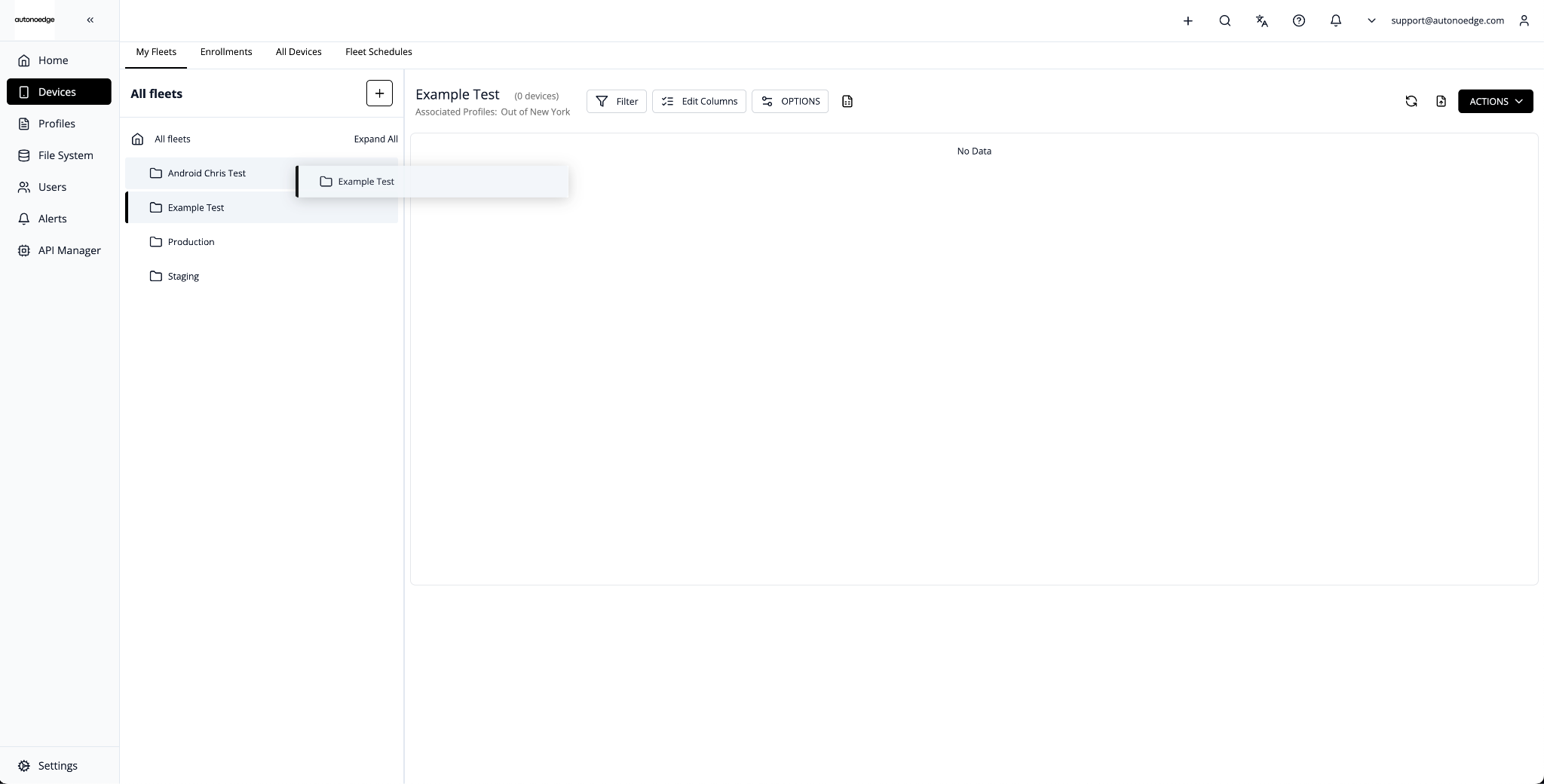
- Go to the Devices tab on the left sidebar.
- In the All Fleets panel, drag and drop the fleet you want to move (e.g., Example Test) onto the target parent fleet (e.g., Android Chris Test).
- A confirmation popup will appear asking if you want to make it a direct child fleet.
Important: If this checkbox is ticked, the current profile attached to (e.g., Example Test) will be retained. If it is not ticked, (e.g., Example Test) will disassociate its existing profile and inherit the parent fleet’s profile settings.
Managing Fleet Devices #
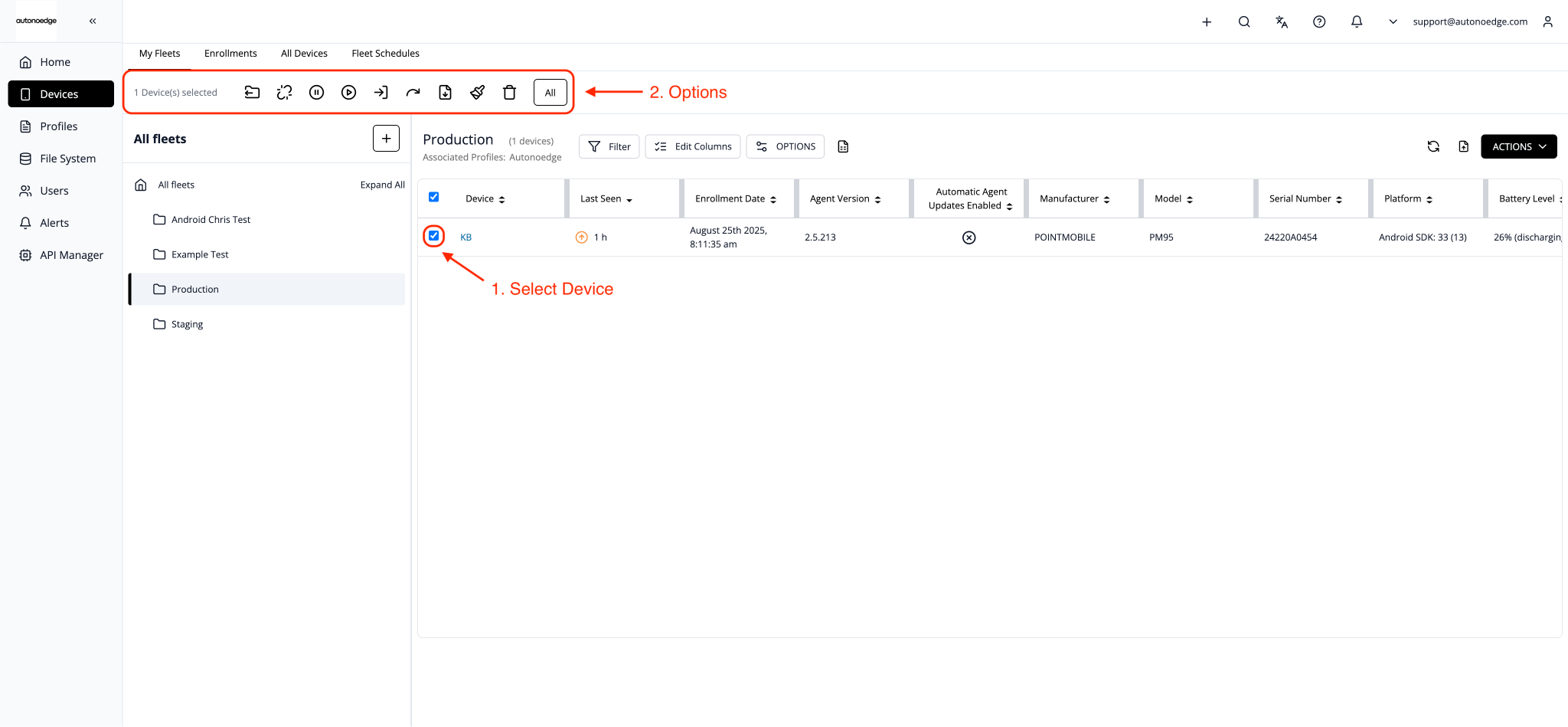
- Go to the Devices tab on the left sidebar.
- Click on the fleet name in the left-hand panel to open it.
- Click the checkbox next to the devices you want to manage.
- Once a device is selected, a toolbar with multiple action icons will appear at the top of the list:
| Icon | Function | Description |
 | Move Device(s) | Transfer selected devices to another fleet. |
 | Unenroll Device(s) | Removes all policies, profiles, and permissions applied during enrollment. |
 | Pause Agent Update | Temporarily halt automatic updates for the agent on selected devices. |
 | Resume Agent Update | Resume paused agent updates. |
 | Force Device Check-in | Immediately trigger the device to check in with the Autonoedge console. |
 | Remote Reboot Device(s) | Restart selected devices remotely. |
 | Download CSV for Bulk Renaming | Export device list in CSV format for renaming purposes. |
 | Remote Wipe Device(s) | Erase all data from the selected devices remotely. |
 | Remove Device(s) | Removes the device from the Autonoedge console and also unenrolls it. However, it does not perform a factory reset or reformat the device. |
 | All Actions | Opens a full list of advanced device actions such as exporting location logs, moving devices, exiting kiosk mode, and etc. |
Note: Alternatively, you can click the “Expand All” button, located at the top left of the All Fleets panel, to view all sub-folders under their respective parent fleets.
Delete Fleet #
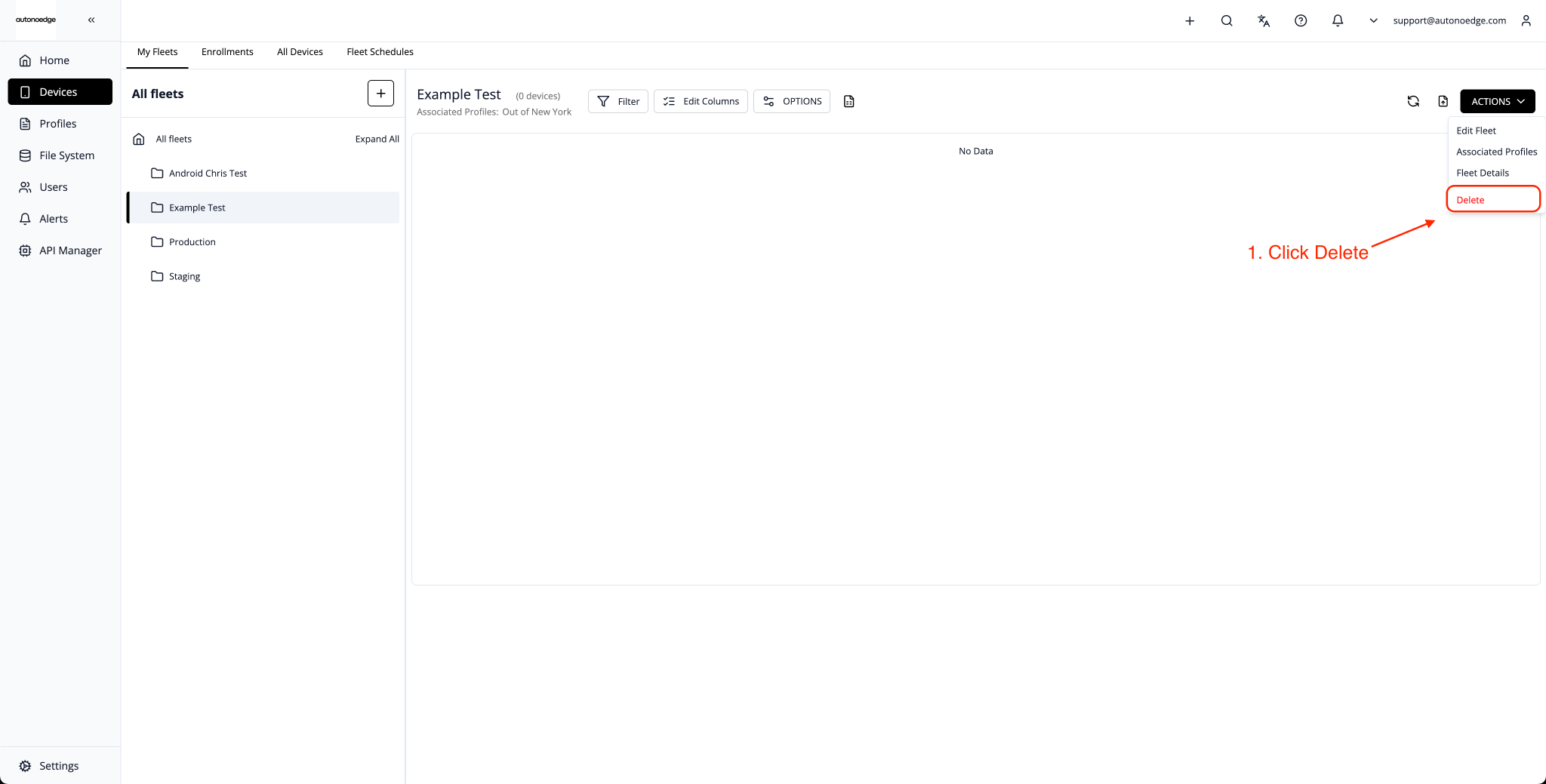
- Navigate to the Devices section and select the fleet from the left-hand menu.
- Ensure all devices are removed from the fleet. (A fleet cannot be deleted if it still contains devices.)
- Click the Actions button on the top right of the fleet panel to access options.
- Select Delete from the dropdown.
- Confirm the deletion in the pop-up dialog.
Important: Deleted fleets cannot be recovered. Ensure the fleet is no longer needed before proceeding.
Best Practices & Tips #
- Use Clear Naming Conventions: Name fleets based on department, device type, or purpose (e.g., Marketing Android, IT – iPads) for easier identification.
- Leverage Nested Fleets for Organization: Use sub-fleets to group related devices hierarchically and apply targeted policies.
- Test Changes on a Small Fleet First: Before applying new profiles or policies to all devices, test them on a smaller fleet to avoid large-scale disruptions.
- Be Cautious When Disassociating Profiles: Removing a profile from a fleet will remove all related settings from those devices. Always double-check before proceeding.
- Document Fleet Changes: Keep a record of renames, profile associations, and structural changes for auditing and troubleshooting.


