

File Sync
2 min read
File Sync in Autonoedge ensures that important files are always available on managed devices. Even if a user deletes a file locally, the system will automatically re-sync it from the console, maintaining consistency and compliance across fleets. This feature is ideal for keeping essential files such as configuration files, documents, or media always updated and accessible.
Key Benefits #
- File Persistence – Automatically restores files if they are deleted from a device.
- Centralized Control – Manage and update files across all devices from the Autonoedge console.
- Operational Consistency – Ensure business-critical files are always present on every device.
- Flexible Deployment – Supports both direct uploads (Autonoedge Cloud) and Hybrid Cloud links.
- Improved Reliability – Files remain synchronized regardless of user actions or accidental deletion.
Step 1 – Uploading Your Files #
Autonoedge Cloud #
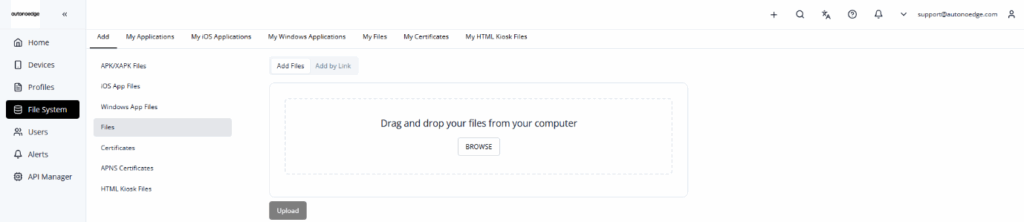
- Navigate to the File System in your console.
- Make sure you are on the Add column and the Files tab.
- Upload your application file by either:
- Dragging and dropping the file into the upload area, or
- Clicking Browse to select the file from your computer.
- Once your file is selected, click Upload to complete the upload.
Hybrid Cloud #
You can also take advantage of our Hybrid Cloud feature, which combines the flexibility of the cloud with the control of on-premise storage — giving you the best of both worlds.
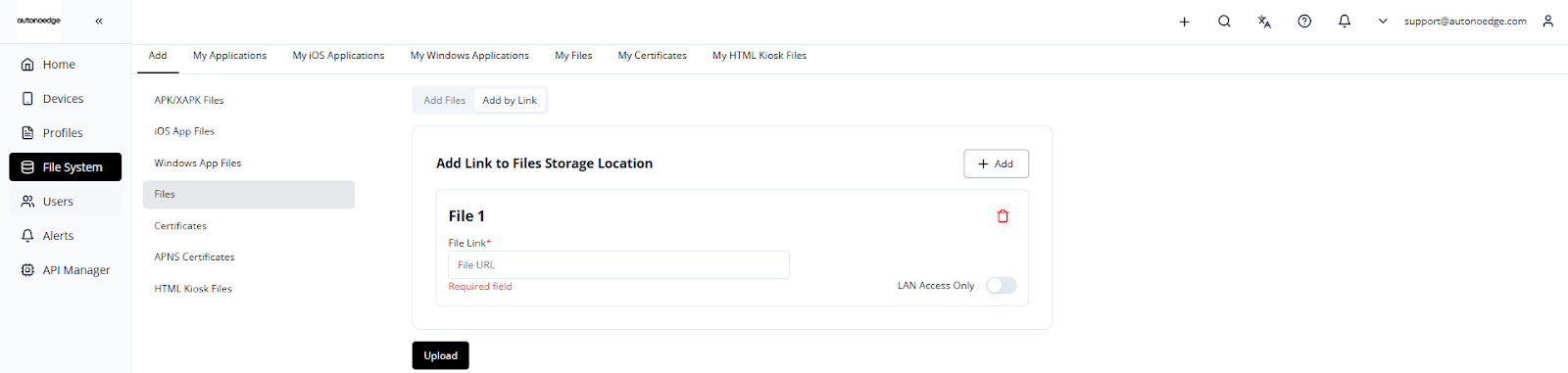
To add an app using a direct link:
- Navigate to the File System in your console.
- Make sure you are on the Add column and the Files tab.
- Switch the toggle to Add by Link.
- Enter your direct download link, for example:
https://192.168.1.1:3000/myfiles.pdf - Click Upload to complete the process.
Please take note if you are using Hybrid cloud:
- The link must directly download the files (This should be a valid link that directly starts downloading the file when accessed) — Google Drive or Dropbox links that lead to a download page won’t work unless properly formatted.
- Ensure the server hosting the files is reliable and publicly accessible (or accessible by the management console).
Step 2 – Prepare Your File Storage Location #
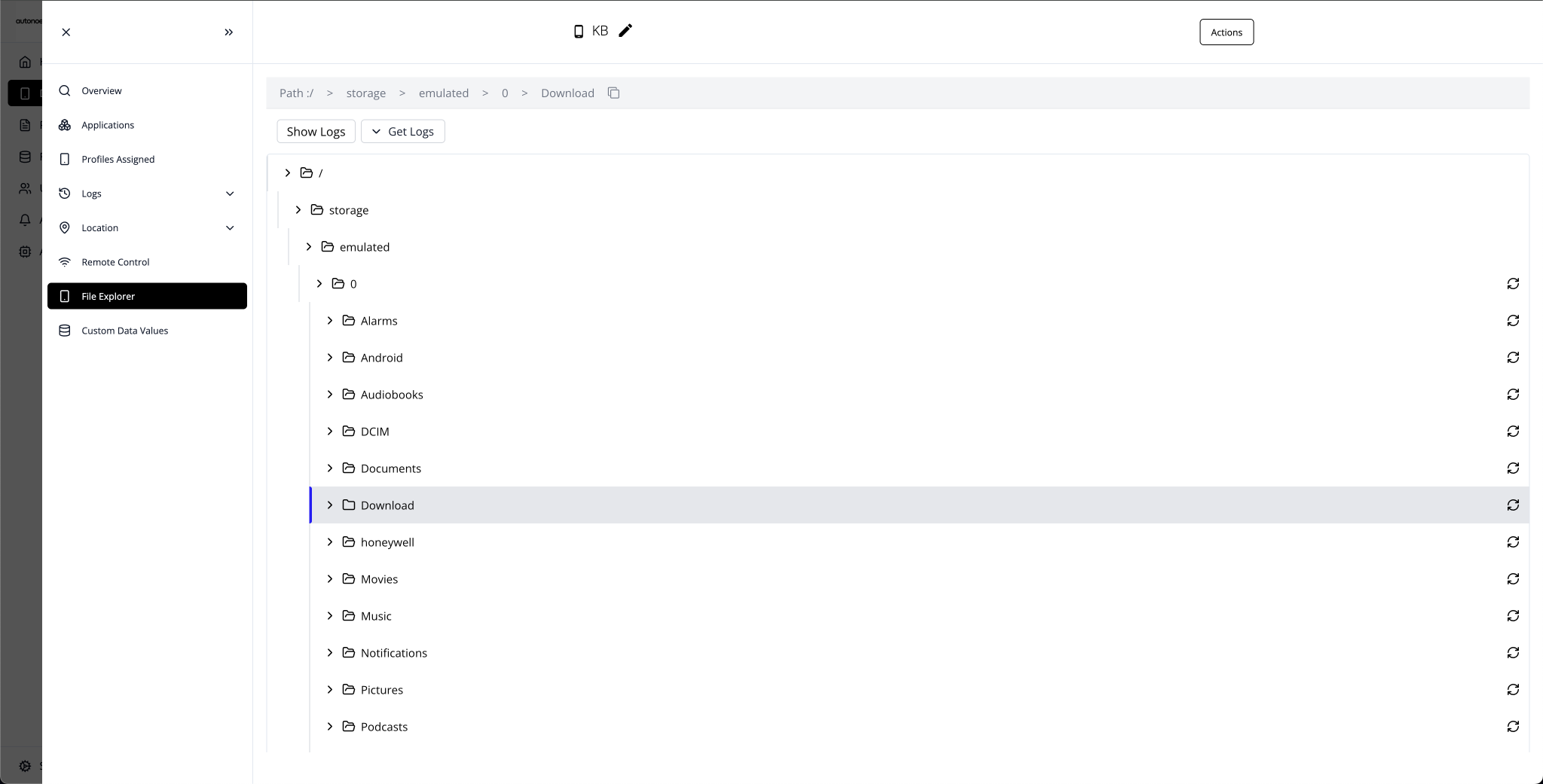
- Log in to your Autonoedge console.
- Navigate to the Devices section from the left-hand menu.
- Select the device for which you want to locate the folder path.
- In the device sidebar, click File Explorer.
- Navigate your target Device Folder Path (e.g., /storage/emulated/0/Download/).
- Click the copy icon in the grey path bar at the top to copy the folder path.
Step 3 – Access the File Sync Menu #
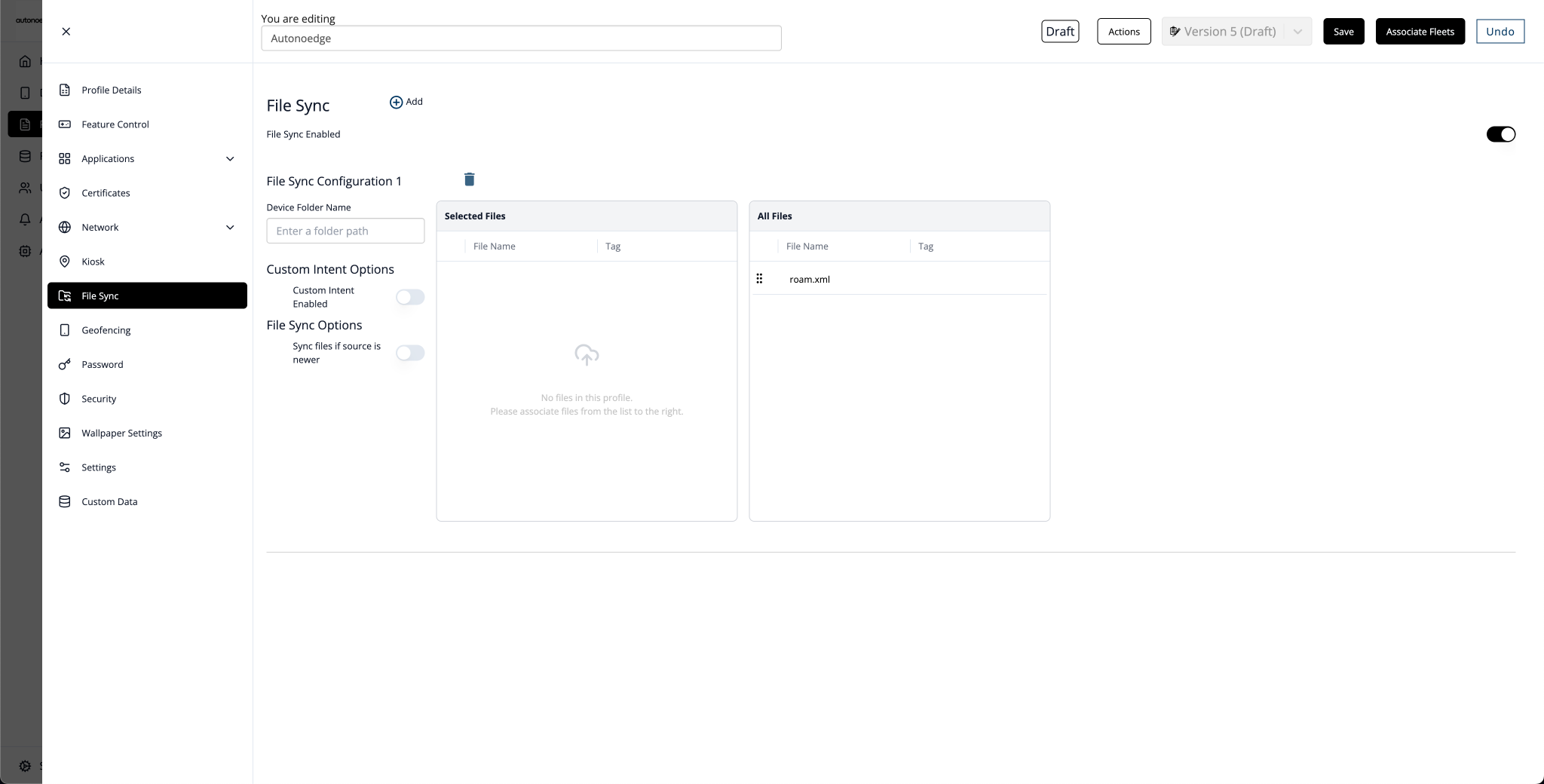
- Navigate to the Profiles section from the left-hand menu.
- Click the “Create New Profile +” button and select Android Edge as the device type.
- In the profile sidebar, click File Sync and toggle the File Sync Enabled switch to On.
- Enter the target Device Folder Path on the left (e.g., /storage/emulated/0/Download/).
- From the file list, drag and drop your uploaded file into the Selected Files box.
Note: Optionally, you may add more files by clicking the “+ Add” button at the top.
Step 4 – Associate the Profile #
- Once your profile is configured with the desired file sync settings, associate the profile with the target fleet.
- Once associated, the file sync settings will be deployed on all devices in that fleet according to the profile settings.
Best Practices & Tips #
- Plan for Sync Time: Large files may take longer to sync; allow sufficient time before expecting availability on all devices.
- Use Clear File Naming: Apply consistent and descriptive file names to simplify tracking and management.
- Test on a Small Fleet First: Validate file sync behavior on a limited group of devices before wide deployment.
- Monitor Storage Space: Ensure devices have enough storage capacity to handle synced files.
- Keep Source Files Updated: Regularly review and replace outdated files to avoid propagating old versions.
- Enable “Sync if Source is Newer”: This option helps keep files up to date while avoiding unnecessary re-syncs.


