

Wallpaper Settings
3 min read
Wallpaper Settings in Autonoedge allow administrators to personalize the device interface by applying custom wallpapers to the home and lock screens. This guide explains how to configure Wallpaper Settings for Android Edge devices.
Key Benefits #
- Device Branding – Apply company-branded wallpapers to all managed devices.
- User Experience – Customize the look and feel of the device interface.
- Consistency – Ensure uniform appearance across fleet devices.
Step 1 – Uploading Your Wallpaper #
Autonoedge Cloud #
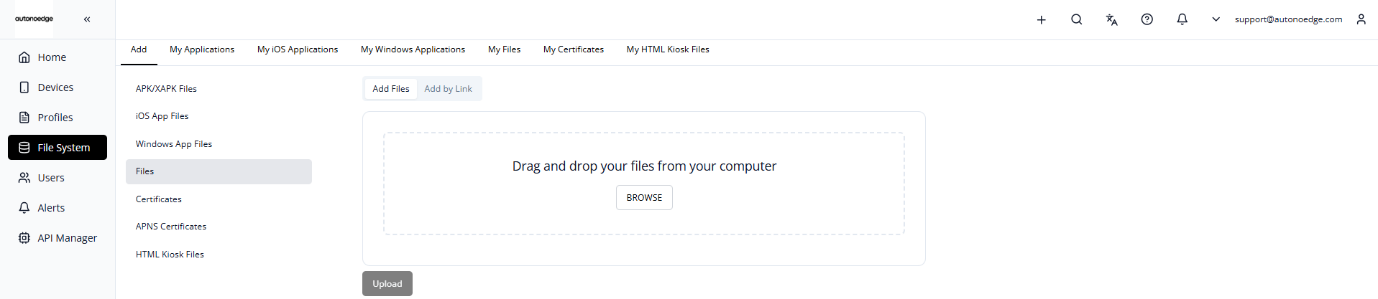
- Navigate to the File System in your console.
- Make sure you are on the Add column and the Files tab.
- Upload your application file by either:
- Dragging and dropping the file into the upload area, or
- Clicking Browse to select the file from your computer.
- Once your file is selected, click Upload to complete the upload.
Hybrid Cloud #
You can also take advantage of our Hybrid Cloud feature, which combines the flexibility of the cloud with the control of on-premise storage — giving you the best of both worlds.
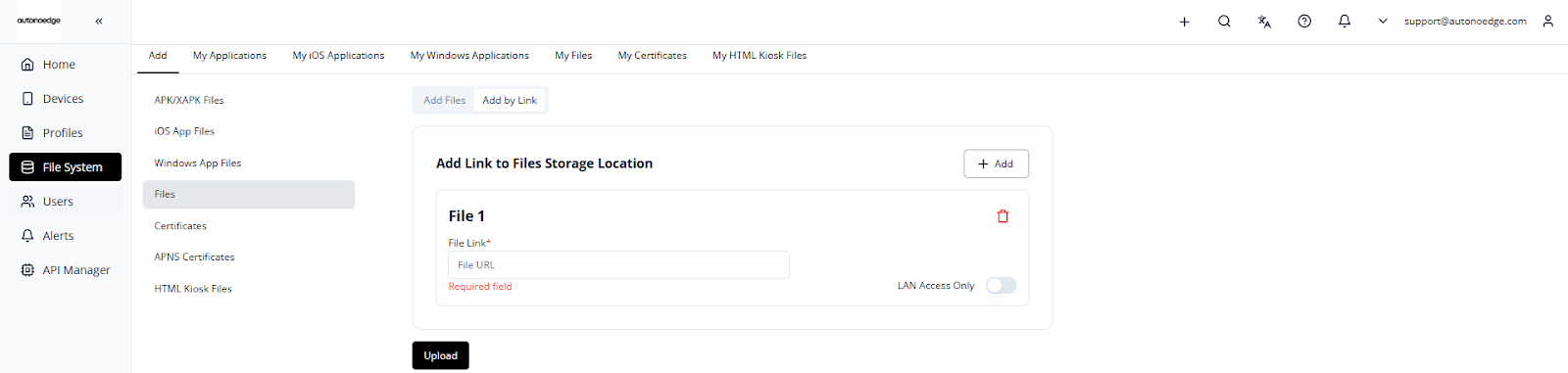
To add an app using a direct link:
- Navigate to the File System in your console.
- Make sure you are on the Add column and the Files tab.
- Switch the toggle to Add by Link.
- Enter your direct download link, for example:
https://192.168.1.1:3000/mywallpaper.png - Click Upload to complete the process.
Please take note if you are using Hybrid cloud:
- The link must directly download the image (This should be a valid link that directly starts downloading the file when accessed) — Google Drive or Dropbox links that lead to a download page won’t work unless properly formatted.
- Ensure the server hosting the image is reliable and publicly accessible (or accessible by the management console).
Step 2 – Access the Wallpaper Settings Menu #
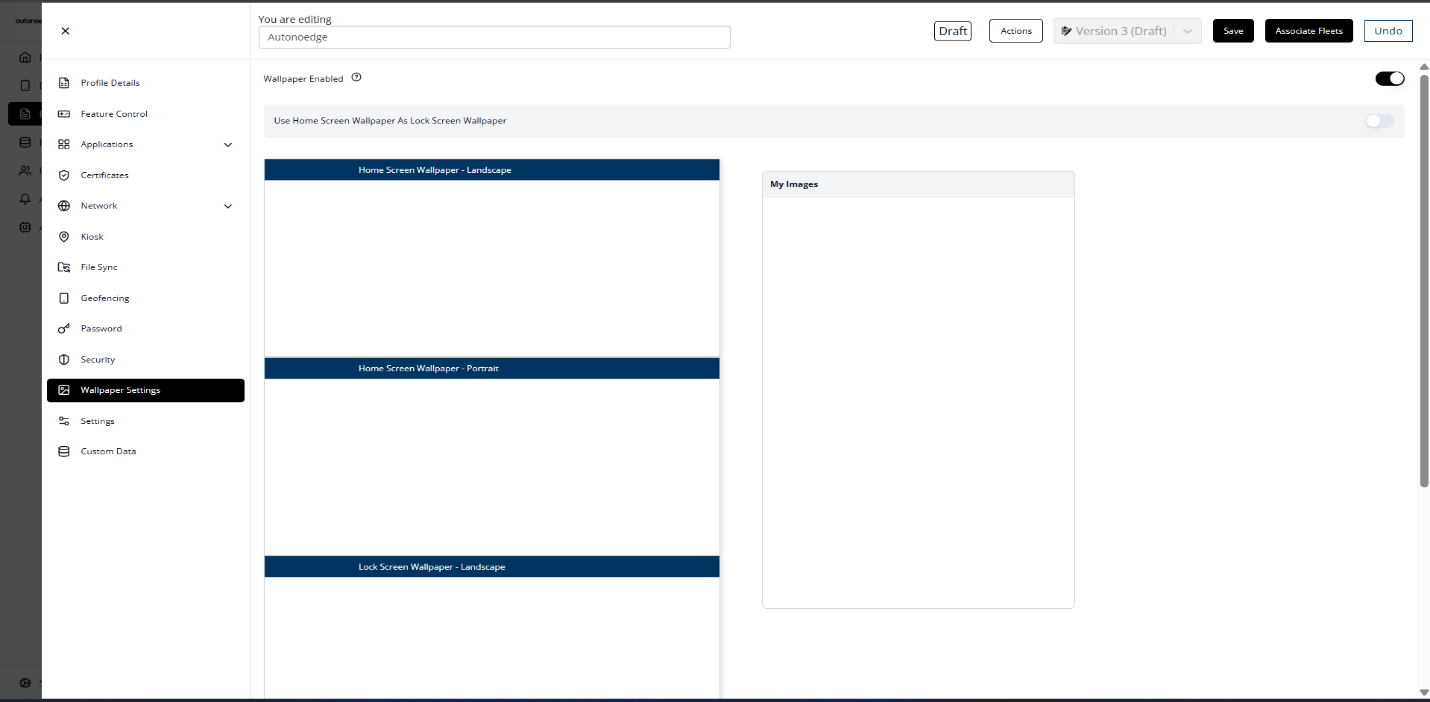
- Log in to your Autonoedge console.
- Navigate to the Profiles section from the left-hand menu.
- Click the “Create New Profile +” button and select Android Edge as the device type.
- In the profile sidebar, click Wallpaper Settings and toggle the Wallpaper Enabled switch to On.
- Locate your uploaded wallpaper, then drag and drop the image into the appropriate screen slot:
- Home Screen Wallpaper – Landscape
- Home Screen Wallpaper – Portrait
- Lock Screen Wallpaper – Landscape
- Lock Screen Wallpaper – Portrait
- Alternatively, you may enable “Use Home Screen Wallpaper As Lock Screen Wallpaper” to apply the same image to both screens.
Step 3 – Associate the Profile #
- Once your profile is configured with the desired wallpaper, associate the profile with the target fleet.
- Once associated, the wallpaper will be deployed on all devices in that fleet according to the profile settings.
Best Practices & Tips #
- Use High-Resolution Images: Aim for 1920×1080 for landscape or 1080×1920 for portrait to ensure clarity.
- Maintain Consistent File Naming: Use clear, consistent names to make image identification and management easier.
- Avoid Distracting Wallpapers: Skip overly bright or busy images that may hinder readability or usability.
- Test Before Rollout: Apply wallpapers to a single device first to check for scaling or orientation issues before fleet-wide deployment.
- Leverage Lock Screen Sync: Use the “Use Home Screen Wallpaper as Lock Screen Wallpaper” toggle to streamline configuration.


