

Password Management
2 min read
Password Settings in Autonoedge allow administrators to enforce secure and consistent password policies across managed devices. By defining rules for password type, length, and complexity, organizations can enhance security, protect sensitive enterprise data, and ensure compliance with internal or industry standards.
Key Benefits #
- Device Protection – Enforce strong password rules to safeguard sensitive enterprise information.
- Compliance – Meet organizational and regulatory security requirements with configurable policies.
- Control – Define password type, minimum length, and complexity to suit security needs.
Step 1 – Access the Password Menu #
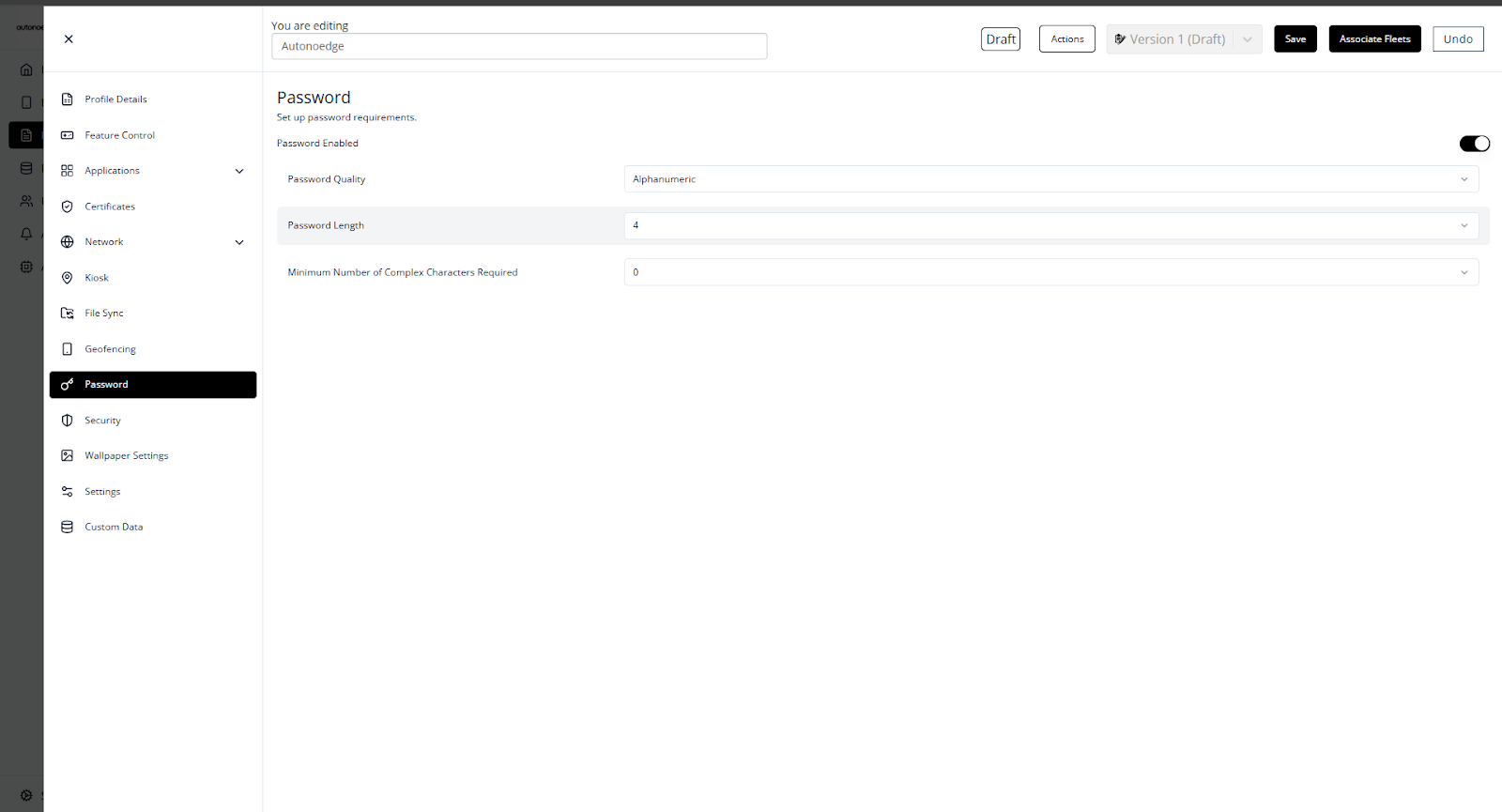
- Log in to your Autonoedge console.
- Navigate to the Profiles section from the left-hand menu.
- Click the “Create New Profile +” button and select Android Edge as the device type.
- In the profile sidebar, click Password and toggle the Password Enabled switch to On.
Step 2 – Configure Password Features #
Once the Password option is enabled, configure the password policy:
- Password Quality:
Choose the type of password.- Alphabetic – Only letters allowed.
- Alphanumeric – Letters and numbers.
- Complex – Includes letters, numbers, and symbols.
- Password Length:
Define the minimum number of characters required (e.g., 4 characters minimum). - Minimum Number of Complex Characters Required:
Specify the minimum count of complex characters (e.g., symbols like !@#) to increase password strength.- Example: A value of 0 means no complex characters are required.
- Example: A value of 0 means no complex characters are required.
Step 3 – Associate the Profile #
- Once your profile is configured with the desired password policy, associate the profile with the target fleet.
- Once associated, the password policy will be deployed on all devices in that fleet according to the profile settings.
Best Practices & Tips #
- Balance Security and Usability: Set rules that protect devices without making passwords overly difficult to remember.
- Use Complex Passwords for Sensitive Fleets: Require alphanumeric and symbol characters for high-security devices.
- Review Policies Regularly: Update password requirements to align with evolving security standards.
- Communicate Requirements to Users: Ensure device users understand the password rules to prevent lockouts.


