

Profile Settings
1 min read
The Profile Settings feature in Autonoedge allows administrators to define device behaviors for system configuration, time synchronization, data usage restrictions, and display preferences. By applying these settings, you can ensure devices operate consistently, securely, and in line with your organization’s operational and security requirements.
Key Benefits #
- Device Standardization – Ensure consistent behavior and configuration across all managed devices.
- Network Control – Restrict background data usage and enforce Wi-Fi-only policies.
- User Interface Optimization – Lock screen orientation and control timeout settings for a consistent user experience.
- Security – Hide system apps and restrict NFC-based file sharing to prevent unauthorized activity.
- Power Efficiency – Manage screen brightness and sleep intervals to extend battery life.
Step 1 – Access the Profile Settings Menu #
- Log in to your Autonoedge console.
- Navigate to the Profiles section from the left-hand menu.
- Click the “Create New Profile +” button and select Android Edge as the device type.
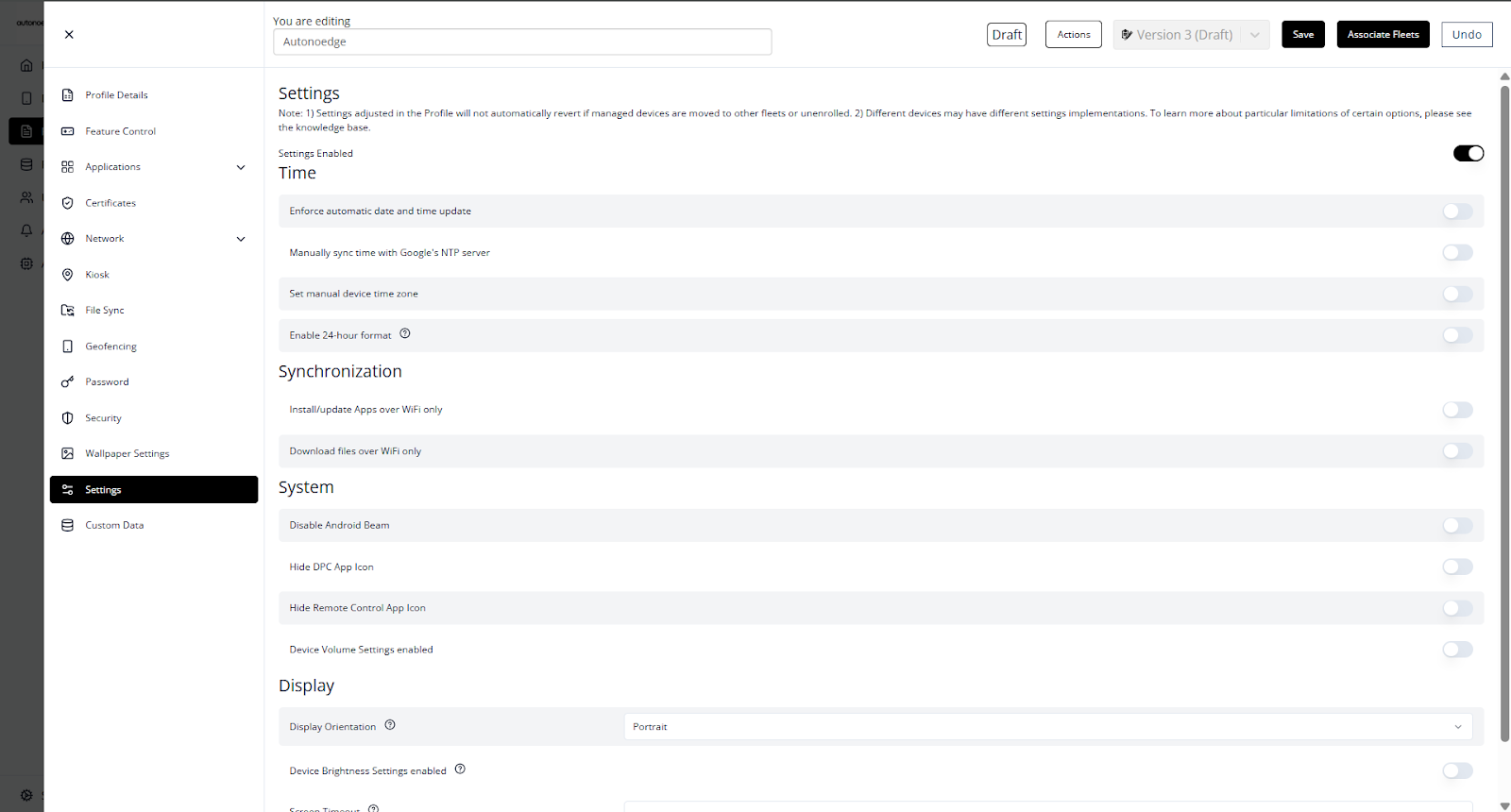
- In the profile sidebar, click Settings and toggle the Settings Enabled switch to On.
Step 2 – Configure Profile Settings #
Time Settings: #

- Enforce automatic date and time update: Automatically syncs the device’s internal clock.
- Manually sync time with Google’s NTP server: Syncs time with Google servers when triggered.
- Set manual device time zone: Forces a specific timezone setting on the device.
- Enable 24-hour format: Displays system time in 24-hour clock mode.
Synchronization Settings: #

- Install/update Apps over WiFi only: Restricts app installation to WiFi networks.
- Download files over WiFi only: Prevents mobile data usage for file downloads.
System Settings: #
- Disable Android Beam: Disables NFC-based file sharing.
- Hide DPC App Icon: Hides the Agent DPC icon from the app drawer.
- Hide Remote Control App Icon: Removes the Autonoedge Remote Control icon.
- Device Volume Settings enabled: Allows users to adjust the device volume.
Display Settings: #

- Display Orientation: Locks device to either Portrait or Landscape mode.
- Device Brightness Settings enabled: Allows brightness to be set manually.
- Screen Timeout: Sets time interval for screen to turn off due to inactivity.
- Note: Selecting “None” sets the shortest possible screen timeout. It does not disable timeout or keep the screen on permanently.
- Note: Selecting “None” sets the shortest possible screen timeout. It does not disable timeout or keep the screen on permanently.
Step 3 – Associate the Profile #
- Once your profile is configured with the desired profile settings, associate the profile with the target fleet.
- Once associated, the profile settings will be deployed on all devices in that fleet.
Best Practices & Tips #
- Check Permission Requirements: Some settings, especially on Android 9 or higher, require the Modify System Settings permission to be granted to the Autonoedge device management application for proper functionality.
- Test Before Deployment: Apply new profile settings to a small group of devices first to confirm expected behavior before fleet-wide rollout.
- Align Settings with Use Case: Customize orientation locks, brightness controls, and timeout intervals based on the device’s intended environment.
- Combine with Security Policies: Use profile settings alongside security features (e.g., disabling NFC, hiding system apps) for stronger protection.
- Regularly Review and Update: Adjust settings as device OS versions or organizational requirements change to maintain compliance and performance.


