

Setting Up Custom Data
1 min read
The Custom Data feature in Autonoedge allows your application to store a specific file on a device’s file system, which the Autonoedge agent securely reads to extract relevant information and display it in the console. This enables you to track unique, business-specific data — such as store IDs, asset barcodes, or custom device states — alongside standard device information, making device management more tailored to your operational needs.
Key Benefits #
- Custom Business Data Tracking – Monitor unique identifiers and business-specific details directly in the console.
- Centralized Visibility – View both standard and custom data in one unified device dashboard.
- Flexible File Support – Extract data from common file formats such as .TXT or .INI.
- Improved Device Management – Filter, search, and group devices using your own custom-defined fields.
How It Works #
- Your App Writes the File
- Your application generates a file (e.g., TXT, INI) containing the required custom data.
- The file is saved in a defined location on the device’s storage (e.g., /storage/emulated/0/Agent/myapp/custom.txt).
- Autonoedge Agent Reads the Data
- The agent detects the file and securely parses its contents.
- Extracted data is synced automatically to your Autonoedge console.
- Data Appears in the Console
- Once synced, the custom data will appear in the Custom Data Values section of your device overview view — making it easy to filter, search, and manage devices using your own custom fields.
- Once synced, the custom data will appear in the Custom Data Values section of your device overview view — making it easy to filter, search, and manage devices using your own custom fields.
Step 1 – Configure Custom Data #
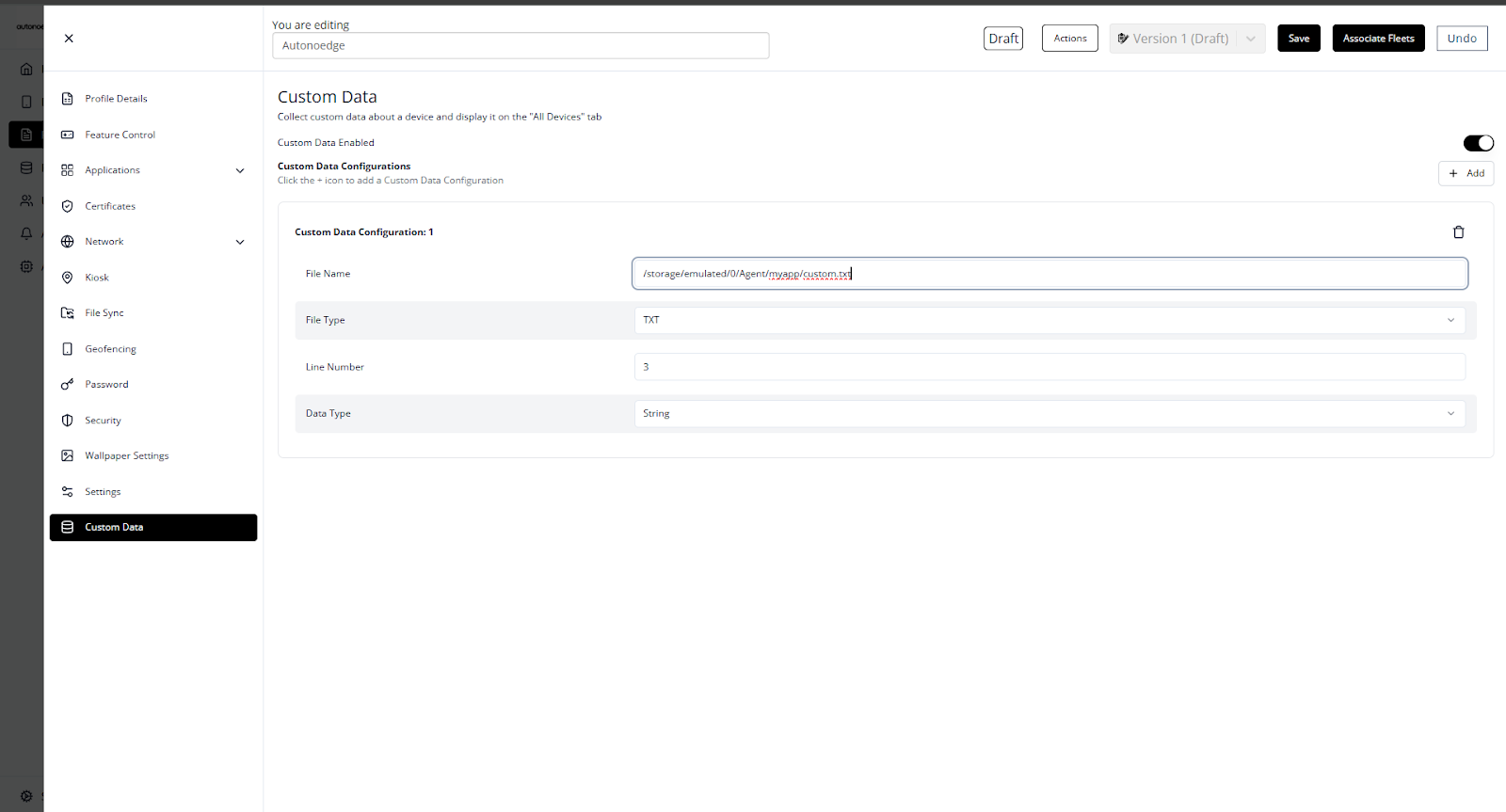
- Log in to your Autonoedge console.
- Navigate to the Profiles section from the left-hand menu.
- Click the “Create New Profile +” button and select Android Edge as the device type.
- In the profile sidebar, click Custom Data and toggle the Custom Data Enabled switch to On.
- Enter the following details:
| Custom Data | Description | Example |
| File Name | Full folder path where the custom data file is stored. | /storage/emulated/0/Agent/myapp/custom.txt |
| File Type | The file format used to store the data. | TXT, INI |
| Line Number | The specific line in the file to read. | 3 |
| Data Type | The type of data in the specified line. | String, Float, Integer |
Step 2 – Associate the Profile #
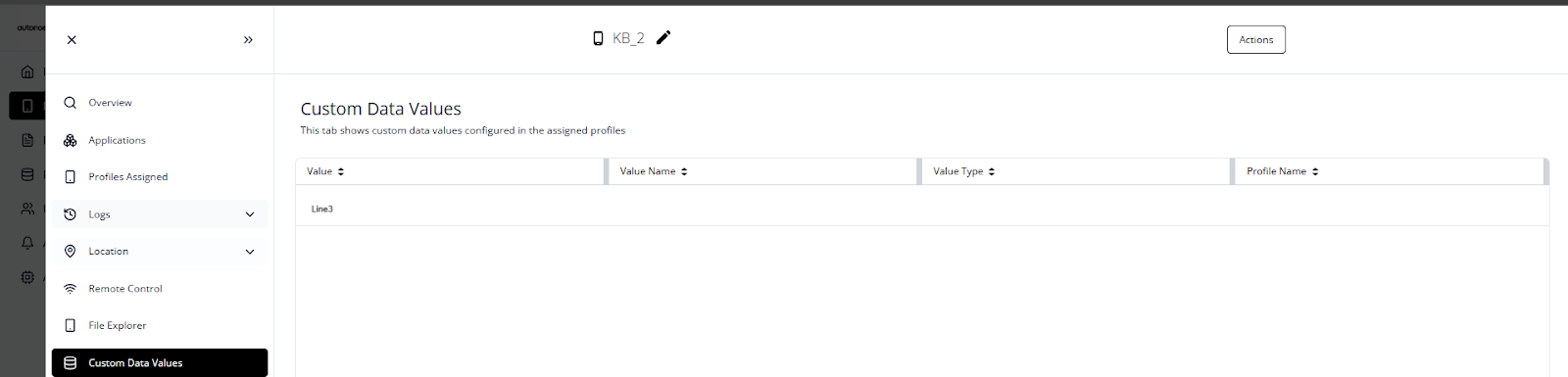
- Once your profile is configured with the desired custom data values, associate the profile with the target fleet.
- Once associated, the custom data values will be deployed on all devices in that fleet according to the profile settings.
- Check your console to confirm that the data appears correctly under the device overview view at the Custom Data Value tab.
Best Practices & Tips #
- Use Consistent File Paths: Ensure your application writes the file to a standardized location across all devices.
- Keep File Size Small: Store only necessary data to speed up syncing and reduce processing time.
- Validate Data Before Parsing: Make sure your application writes valid and correctly formatted content to avoid parsing errors.
- Test Before Wide Deployment: Apply the profile to a small fleet first to confirm correct data extraction.
- Use Clear Data Types: Select the most accurate data type (String, Float, Integer) to prevent formatting issues in the console.


