

Hybrid Cloud
1 min read
Autonoedge Hybrid Cloud is a modern architecture that combines the flexibility of cloud-based orchestration with the control and performance of on-premise content storage. This setup is ideal for organizations managing a large number of edge devices that require secure, responsive, and scalable content delivery — without compromising data privacy or incurring high cloud storage costs.
Key Benefits #
- Centralized Storage – Manage all required files from a single, secure location in the Autonoedge console.
- Flexible Upload Options – Upload directly from your device or add via a hosted link.
- Multi-File Type Support – Store and deploy applications, certificates, HTML kiosk files, and more.
- Profile Integration – Easily attach stored files to profiles for automated deployment.
- Scalable Deployment – Apply files to multiple devices or fleets with minimal effort.
Step 1 – Configure On-Premise File Storage #
Uploading Files #
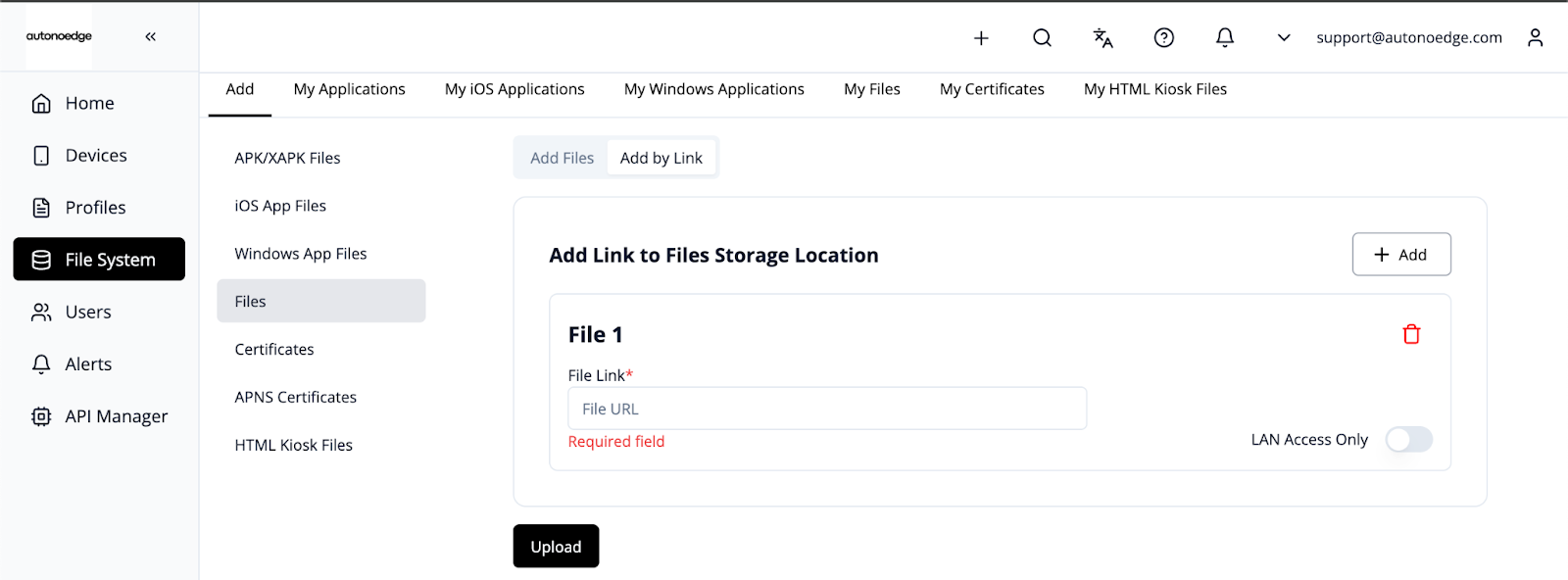
- In the Autonoedge console, navigate to File System > Add > Files.
- Select Add by Link and input the full file URL.
- Example URL:
http://192.168.1.1:3000/example_file - Alternatively, you may enable LAN Access Only if you want devices to fetch content strictly over local networks.
- Click Upload to save the file reference.
Uploading APK/XAPK Files #
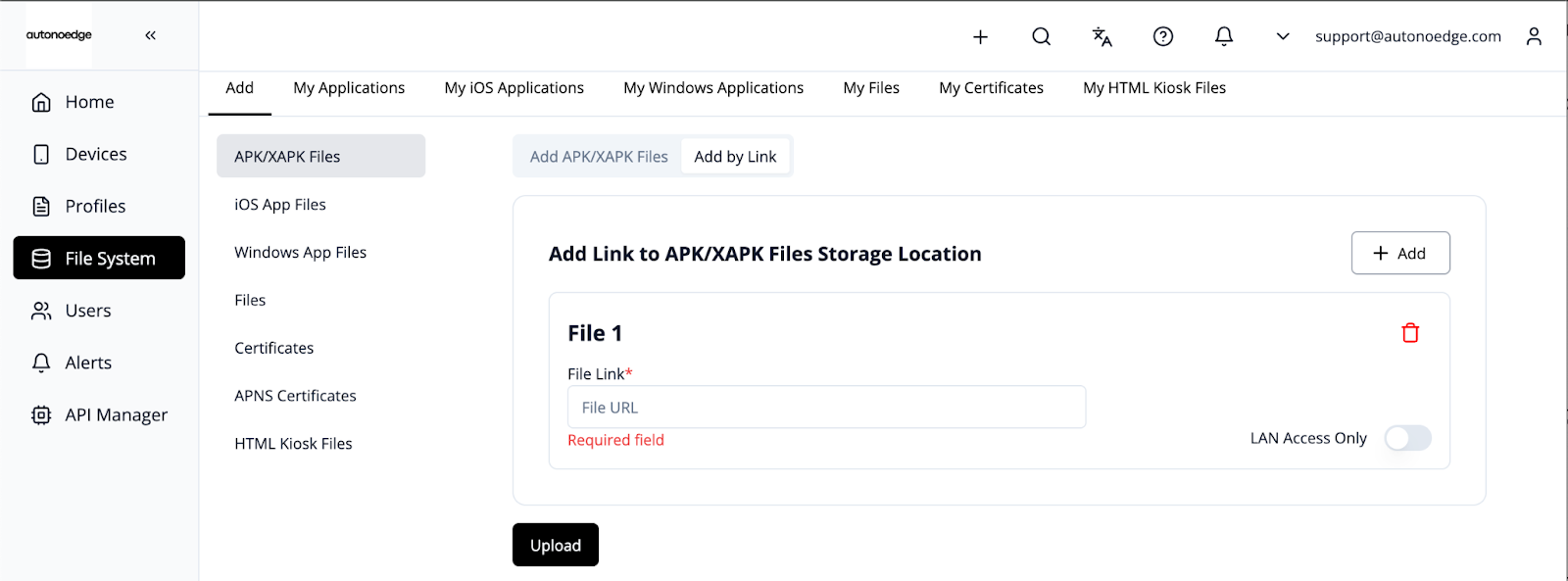
- In the Autonoedge console, navigate to File System > Add > APK/XAPK Files.
- Select Add by Link and input the full file URL.
- Example URL:
http://www.yourwebsite.net/storage/apk/testapp.apk - Alternatively, you may enable LAN Access Only if you want devices to fetch content strictly over local networks.
- Click Upload to save the file reference.
Note: This same process also applies when adding files in the iOS App Files, Windows App Files, Certificates, APNS Certificates, and HTML Kiosk Files sections within the File System.
Step 2 – Associate the Profile #
- Once your profile is configured with the selected files, associate the profile with the target fleet.
- Once associated, the files will be deployed on all devices in that fleet according to the profile settings.
Best Practices & Tips #
- Use Descriptive File Names: Clearly name files to reflect their purpose and target devices (e.g., SalesApp_v1.2.apk).
- Host Files on Reliable Servers: For links, ensure the file is hosted on a stable, accessible server to avoid broken deployments.
- Verify File Integrity: Before uploading, check that files are complete, uncorrupted, and in the correct format.
- Organize by Category: Keep related files grouped by type for quicker retrieval and deployment.
- Remove Unused Files: Regularly clean up outdated or unused files to prevent clutter in the file repository.


